Signify Organization CRM Integration: Connect Zoho CRM and HubSpot
Signify Organization CRM Integration helps teams transfer contacts collected through their Signify digital business cards into Zoho CRM or HubSpot. Instead of manually copying contact details, organization users can sync contacts individually or use the Sync all control to send eligible contacts to a connected CRM.
This guide explains how to connect your CRM accounts, understand the integration dashboard, search team contacts, sync or re-sync contact information, and manage connections for your organization.
What Is Signify Organization CRM Integration?
Signify's CRM integration brings contacts collected through your organization's digital business cards into the CRM platform your team uses. You can connect Zoho CRM, HubSpot or both, then send contact information to the selected platform when needed.
The integration is managed from Signify's organization workspace. Each CRM connection has its own status and sync controls, so syncing a contact to one platform does not automatically sync it to the other.
The integration is initiated from Signify rather than running as a continuous two-way synchronization. Changes made in Zoho CRM or HubSpot are not automatically brought back into Signify.
1. Open the CRM Integration Page
Sign in to your Signify account with access to the organization area, then open the Organization CRM Integration page.
The page is available at /organization/crm.
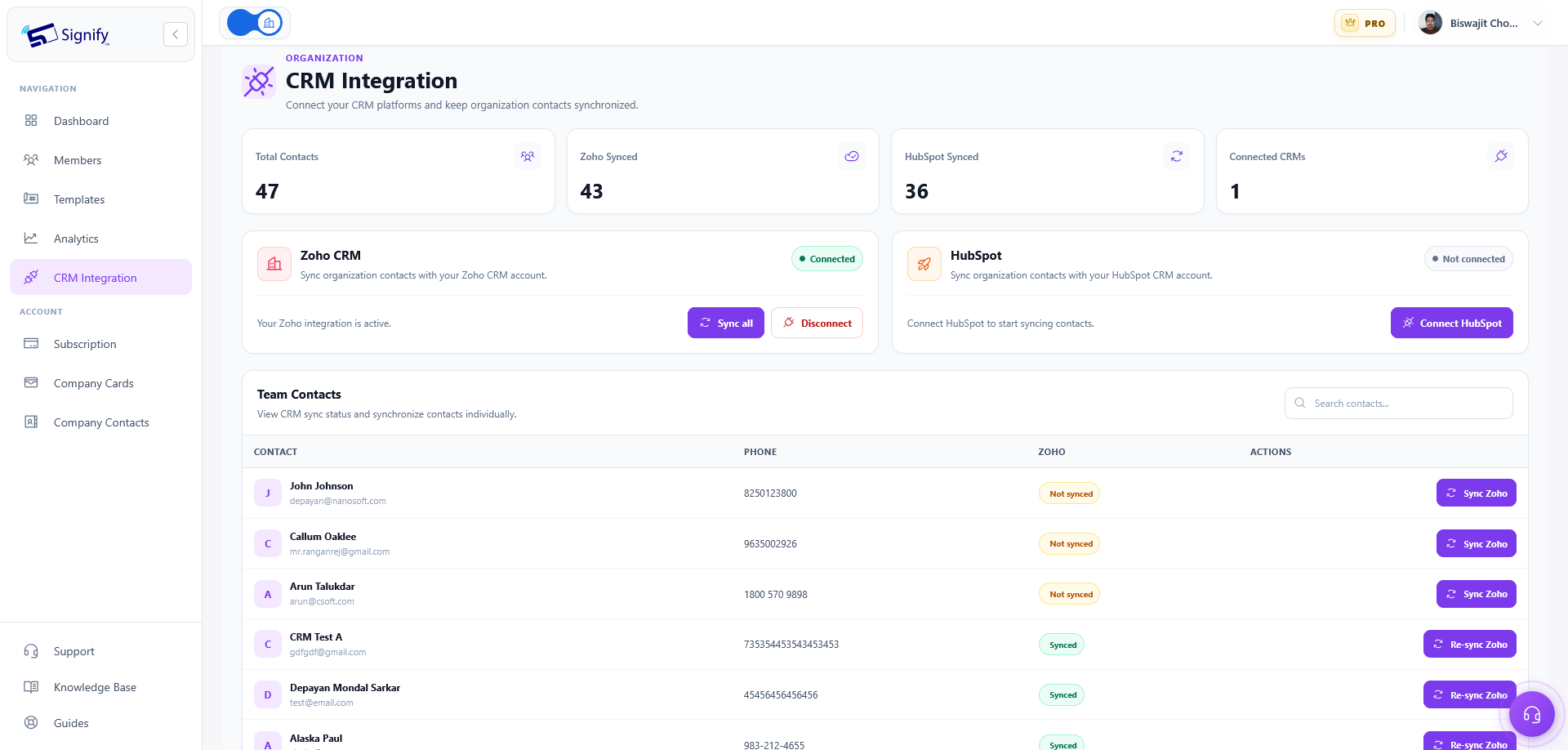
It contains a separate connection card for Zoho CRM and HubSpot,
along with team contact information and synchronization controls.
Before connecting a provider, make sure the person authorizing the connection has permission to approve access to the organization's CRM account.
2. Connect Zoho CRM or HubSpot
Connect the CRM platforms your organization wants to use. Zoho CRM and HubSpot are configured independently.
- Open the Organization CRM Integration page.
- Locate the connection card for Zoho CRM or HubSpot.
- Check the connection status. A new connection is marked Not connected.
- Select Connect Zoho or Connect HubSpot, depending on the provider you want to set up.
- Sign in to the CRM provider, choose the appropriate account if prompted, and authorize the requested access.
- After returning to Signify, verify that the relevant connection card shows Connected.
Connect each platform separately: Connecting Zoho CRM does not connect HubSpot, and connecting HubSpot does not connect Zoho CRM. You can connect either platform or both, according to your organization's workflow.
3. Understand the CRM Connection Cards
Each CRM has its own connection card. The card displays the provider's connection status and provides the actions available for that platform.
Connect Zoho or Connect HubSpot
Starts the authorization process for a CRM that is not currently connected to Signify.
Sync all
Sends the organization's contacts that have not yet been recorded as synced to that particular CRM. The action applies only to the provider whose card you select.
Disconnect
Removes the selected CRM connection from Signify. It does not disconnect the other provider or delete records that have already been sent to the CRM.
For example, selecting Sync all on the Zoho CRM card processes eligible contacts for Zoho CRM only. To send contacts to HubSpot as well, connect HubSpot and use the controls on its card separately.
4. Understand the Contact Summary
Once at least one CRM is connected, the page displays summary counts that help you understand the number of available contacts and their synchronization progress.
| Summary Metric | What It Means |
|---|---|
| Total Contacts | Contacts available from the organization's owner and members. |
| Zoho Synced | The number of those contacts with a Zoho synchronization record. |
| HubSpot Synced | The number of those contacts with a HubSpot synchronization record. |
| Connected CRMs | The number of supported CRM connections that are currently active. |
Sync counts are provider-specific: A contact synced to Zoho CRM is not necessarily synced to HubSpot. Each platform maintains its own synchronization status.
5. Search and Browse Team Contacts
The Team Contacts table lists contacts available to your organization. You can use it to locate individual records and check their synchronization status.
Search by Name or Email
Use the Search contacts... field above the table to search by a person's name or email address. The table updates as you type.
If you cannot find a contact, try another part of the person's name or their email address. You can also clear the search field to return to the full list.
Review Contact Details and Sync Status
The table shows the contact's name, email address and phone number when those details are available. It also displays a separate sync status for each connected CRM.
| Status | Meaning |
|---|---|
| Synced | Signify has a synchronization record for that contact and CRM. |
| Not synced | The contact does not currently have a synchronization record for that CRM. |
The contacts table is paginated. Use its page controls to browse additional results when the contact list spans multiple pages.
6. Sync or Re-sync an Individual Contact
Individual synchronization is useful when you want to send one contact to a selected CRM or update a record that has already been synced.
- Open the Organization CRM Integration page.
- Find the contact in the Team Contacts table using the search field if necessary.
- Choose the action for the CRM you want to update: Sync Zoho or Sync HubSpot.
- Wait for the operation to complete and review the status or confirmation message.
When Should You Use Re-sync?
After a contact has been synced, its button changes to Re-sync Zoho or Re-sync HubSpot. Use that action to send the contact's currently available Signify details to update its linked CRM record.
If Signify already has a matching contact linked to the CRM, synchronization updates the existing record. If there is no linked record, Signify may use the contact's email address to find a matching CRM contact before creating a new one.
7. Sync All Eligible Contacts to a CRM
When your organization has many contacts to transfer, use Sync all to process contacts that have not yet been recorded as synced to a particular provider.
- Locate the connection card for the CRM you want to update.
- Confirm that the selected CRM is connected.
- Select Sync all on that provider's card.
- Wait for the operation to finish. The button displays a syncing state while the process is in progress.
- Review the confirmation or error message displayed on the page.
Sync all does not resend every contact on every click. It applies to contacts that have not already been recorded as synced to the selected CRM. To update a contact that has already been synced, use its individual Re-sync action.
Remember that the operation is provider-specific. To sync eligible contacts to both Zoho CRM and HubSpot, use Sync all separately on each connected provider's card.
8. Which Contact Details Are Sent to Your CRM?
When you sync a contact, Signify sends the contact details available in Signify to the connected CRM. Depending on the information available for that contact, this can include:
- Name
- Email address
- Phone number
- Company
- Job title
- Department
- Website
- Social profile details
- Notes
Only details available for the contact are included. The integration helps transfer those details into the selected CRM so the organization can use its existing sales and customer relationship workflows.
Before syncing contact information, make sure your team follows your organization's policies for collecting and sharing contact details.
9. Understand How CRM Synchronization Works
Existing Synced Contacts
If Signify already has a matching contact linked to the selected CRM, syncing updates the existing CRM record with the contact information currently available in Signify.
Contacts Without a Linked CRM Record
If no linked CRM record exists, Signify may use the contact's email address to look for a matching contact in the selected CRM before creating a new record.
Signify Initiates the Sync
Contact transfers are initiated from the Signify CRM Integration page. You decide when to sync all eligible contacts or re-sync an individual contact.
This is not a continuous two-way synchronization. Changes made directly in Zoho CRM or HubSpot are not automatically imported back into Signify. Use Signify's sync controls when you want to send or update contact information from Signify to the CRM.
10. Disconnect a CRM
If your organization no longer wants to use a connected provider, select Disconnect on that CRM's connection card. This removes the provider's connection from Signify.
Disconnecting Zoho CRM does not disconnect HubSpot, and disconnecting HubSpot does not disconnect Zoho CRM. The disconnected provider's sync actions are no longer available until the connection is established again.
Disconnecting does not delete CRM records. Contacts that were already sent to Zoho CRM or HubSpot remain managed in that CRM. Review and manage those records directly in the relevant CRM account.
Why Use Signify CRM Integration?
Reduce Manual Data Entry
Syncing contact information from Signify helps reduce repetitive copying and pasting into your CRM.
Bring Team Contacts Together
Available contacts from the organization owner and team members can be sent to the organization's connected CRM, supporting a shared contact management workflow.
Update Existing CRM Records
Use individual re-sync controls to send updated details from Signify to a linked CRM contact when needed.
Monitor Synchronization Progress
Search for contacts and review their Zoho and HubSpot sync statuses to understand which platform has a synchronization record for each person.
Frequently Asked Questions
Which CRM platforms does Signify support?
Signify Organization CRM Integration supports Zoho CRM and HubSpot. You can connect either platform or both.
Where can I find the CRM Integration page?
Open the organization CRM page at /organization/crm. It is available to organization users with access to the organization area.
Can I connect both Zoho CRM and HubSpot?
Yes. Each provider has a separate connection and status. Connecting one does not automatically connect the other.
What does Sync all do?
Sync all processes contacts that have not yet been recorded as synced to the selected CRM. It does not automatically re-send every previously synced contact.
How do I update a contact that has already been synced?
Find the contact in the Team Contacts table and use Re-sync Zoho or Re-sync HubSpot, depending on the platform you want to update.
Does Signify sync CRM changes back into Signify?
No. The integration is initiated from Signify. Changes made in Zoho CRM or HubSpot are not automatically brought back into Signify.
What happens if a matching CRM contact already exists?
If Signify has a matching contact linked to the CRM, synchronization updates that existing record. Otherwise, Signify may use the contact's email address to look for a matching CRM contact before creating a new record.
Will disconnecting a CRM delete previously synced contacts?
No. Disconnecting removes the connection from Signify. Previously synced records remain in the CRM and should be managed directly in that platform.
Do Zoho and HubSpot share the same sync status?
No. Each CRM has its own synchronization records. A contact synced to Zoho CRM is not necessarily synced to HubSpot.