Signify Guides
Signify Leads: Send, Receive, and Manage Business Card Leads
Signify Leads gives people a simple way to express interest in a digital business card and share their own contact details with the card owner. Learn how to send a lead as a Signify user, submit a guest lead without an account, and manage incoming leads from your Leads page.
Important: A lead is not automatically a contact. It first appears in the recipient's Leads page, where it can be reviewed, accepted, saved, or deleted depending on the type of lead.
What Is a Signify Lead?
A lead is a way for someone to express interest in another person's Signify digital business card while sharing their own details with that card owner.
The person who sends the lead is the sender. The person who owns the Signify card receiving the lead is the recipient.
Signify supports two types of leads: card leads from Signify users and guest leads from people who do not have a Signify account. The way the recipient handles each type is slightly different.
How to Send a Lead as a Signify User
When you already have a Signify account, you can send one of your own digital business cards as a lead to the owner of another Signify card.
1Open the person's public Signify card
Visit the public Signify digital business card you want to respond to. Review the card before sending your information.
2Select Send Lead
Choose Send Lead from the public card to start the lead process.
3Choose one of your Signify cards
Select the Signify digital business card you want to share. Signify uses the selected card's name and available contact information, such as your email address, phone number, and company details.
4Submit the lead
Submit your selected card. The lead is delivered to the owner of the card you were viewing.
The recipient can then review your shared card and choose Save Contact to add it to their Contacts.
Send a Lead from Contacts
You can also start the process from Contacts. Load the person's shared Signify card URL, review the card, and select Send Lead.
Choose the Signify card you want to send, then submit it. This provides another convenient way to respond when you already have someone's shared card available in your contact workflow.
How to Send a Lead Without a Signify Account
Someone does not need a Signify account to express interest in a public Signify card. On a public card, they can select Send Lead and submit their information directly.
A guest lead can include:
- Name - required
- Email - required
- Phone number - required
- Company - optional
- Note - optional
After the form is submitted, those details are sent to the owner of the Signify card. Because the sender does not have a Signify card, this is treated as a guest lead.
How to Review Leads You Receive
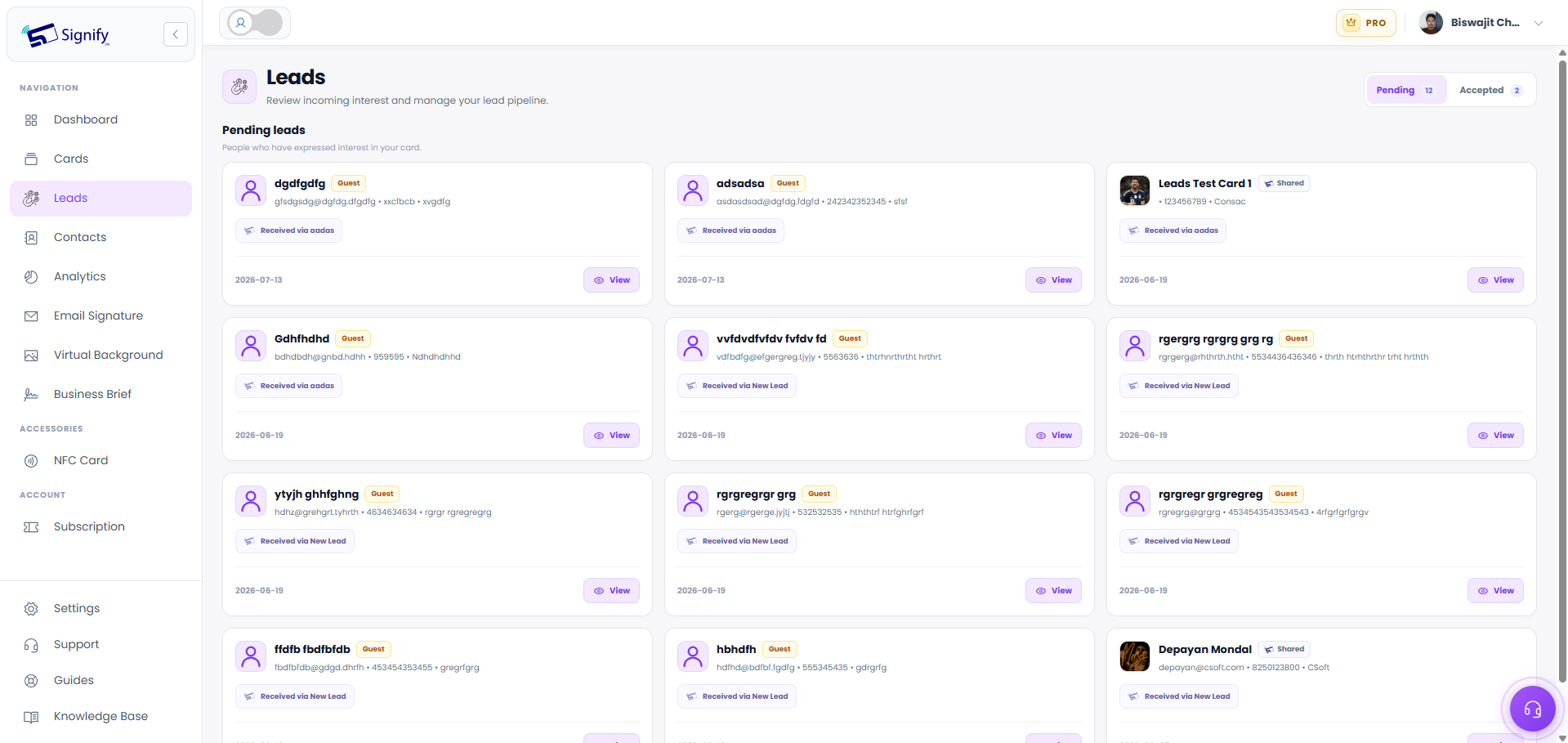
Open Leads to see incoming interest from people who have responded to your Signify digital business card.
The Pending tab can contain both Signify card leads and guest leads. Open a lead to review the sender's information and the card through which the lead was received.
Handling a Signify card lead
When the lead was sent by another Signify user, you can review their shared card and select Save Contact to add that card to your Contacts.
The saved contact is identified as a saved lead, and the lead leaves the pending list. When the contact is already saved, Signify updates that existing contact's lead classification and assigned card.
Handling a guest lead
When the lead comes from someone without a Signify account, select Accept to move it to Accepted.
Accepted guest leads remain in the Leads page. They are not automatically added to Contacts because there is no Signify digital business card to save. You can delete a guest lead when you no longer need it.
Card Leads vs. Guest Leads
The main difference between the two lead types is whether the sender is sharing an existing Signify card or manually entering their contact details.
| Feature | Card Lead | Guest Lead |
|---|---|---|
| Sender | Signify user | Someone without a Signify account |
| Information shared | Details from a selected Signify card | Details entered manually in the lead form |
| Received in Leads | Yes | Yes |
| Recipient action | Save Contact | Accept or delete |
| Can be saved as a Signify card contact? | Yes | No |
Remember: A card lead is connected to an actual Signify card, while a guest lead contains manually submitted contact details and is not connected to a Signify card.
How Signify Leads Fit Into Your Contact Workflow
Leads help separate initial expressions of interest from contacts you have chosen to keep. A person can first appear as a lead, then become a saved contact when you decide to keep their Signify card.
This makes the Leads page useful for reviewing new business connections before adding them to your main Contacts list. Guest leads stay separate because they do not have a Signify card behind them.
Signify Leads FAQ
What is a lead in Signify?
A lead is a way for someone to express interest in a Signify digital business card and share their own details with the card owner. A lead is reviewed before it becomes a saved contact.
Is a Signify lead automatically added to Contacts?
No. A card lead must be reviewed and saved using Save Contact. Guest leads are not automatically added to Contacts because they are not connected to a Signify card.
What is the difference between a card lead and a guest lead?
A card lead is sent by a Signify user using one of their own cards. A guest lead is submitted by someone without a Signify account using manually entered contact information.
Can someone send me a lead without a Signify account?
Yes. A visitor can use Send Lead on your public Signify card and submit their name, email, and phone number. Company and a note can also be included.
What happens when I save a card lead?
Saving a card lead adds the sender's Signify card to Contacts and identifies it as a saved lead. The lead is removed from the pending list.
What happens when I accept a guest lead?
The guest lead moves from Pending to Accepted and remains available in the Leads page. It is not automatically added to Contacts because there is no Signify card to save.
Turn Interest Into a Business Connection
Signify Leads gives you a simple way to collect interest from both Signify users and visitors without an account. Review incoming leads, save useful Signify cards to Contacts, and keep guest inquiries organized separately.
Create and share your Signify digital business card to start receiving leads from the people you meet.