Signify Company Contacts: A Guide to Your Organization's Contact Directory
Signify Company Contacts gives your organization a shared view of the contacts collected by team members. Instead of relying on separate individual contact lists, your team can browse a common directory, find out who added each contact, check when it was collected and preview available Signify card details.
Whether your team meets people at sales meetings, networking events, conferences or recruitment activities, Company Contacts helps make those connections easier for the organization to discover and review.
What Is Signify Company Contacts?
Company Contacts is an organization-level contact directory that brings together contacts saved by your Signify Teams members. It gives authorized organization users a shared place to review contact information collected across the team.
Each entry can show the contact's available details, the team member who added it, the date it was collected and the source type. You can search, filter and sort the directory, then open a contact preview to review more of the person's shared card information.
The page is designed for viewing and reviewing contact records. It does not provide editing or deletion controls for those contacts.
1. Open the Company Contacts Page
- Sign in to your Signify account with access to your organization workspace.
- Open the Organization Dashboard.
- Navigate to Company Contacts.
You can also open the page directly at /organization/company-contacts. The directory displays the contacts collected by members of your organization.
2. Understand What Appears in the Directory
A contact entry can include several pieces of information, depending on what was available when the contact was saved.
Contact Details
Review the person's name, company, role, email address and phone number when those details are available.
Added By
Identify which organization member saved the contact. This helps your team understand who originally collected a connection.
Date Added
Check when the contact was collected so you can understand the order in which contacts were added.
Source Type
See whether the contact came from a digital Signify business card or was added from a scanned physical business card.
Signify Card vs. Physical Card
| Source Type | Meaning |
|---|---|
| Signify Card | A contact saved from a digital Signify card. |
| Physical Card | A contact added from a scanned physical business card. |
Contact details may vary: Not every record contains every field. Email addresses, phone numbers, company information and other details appear only when available for that contact.
3. Understand the Contact Summary
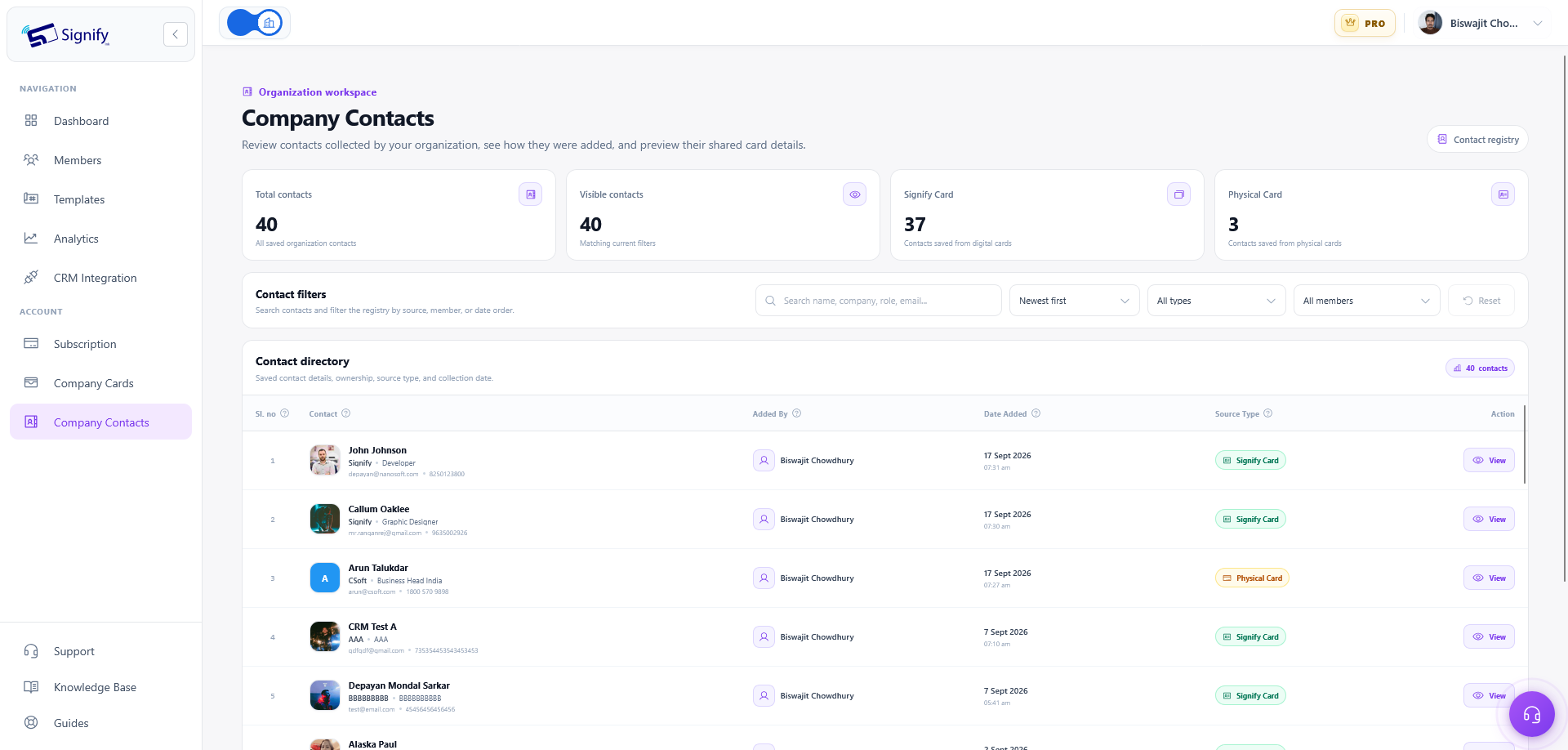
Four summary cards at the top of the page help you understand the size and composition of the directory. Some totals describe the full directory, while others respond to the search and filters you've applied.
Total Contacts
The total number of contacts currently listed for the organization.
Visible Contacts
The number of entries matching your current search and filter selections.
Signify Card
The number of contacts saved from digital Signify business cards.
Physical Card
The number of contacts added from scanned physical business cards.
The Visible Contacts count changes as you search or apply filters. Use it to see how many records match your current view without losing sight of the total directory size.
4. Search the Contact Directory
Use the search field in the Contact filters area to find a contact using familiar details. Search can match:
- Person's name
- Company name
- Role or job title
- Email address
- Phone number
The directory updates as you type, narrowing the results to matching entries. For example, search by a company name to find contacts associated with that business, or search by a team member's name to locate contacts they added.
To return to the full directory, clear the search text. You can also select Reset to clear the search together with any other active filters.
5. Filter and Sort Contacts
Use the Contact filters area to narrow the directory by source, team member or collection date. You can combine these controls to find a specific group of contacts.
Filter by Source Type
Select All types, Signify Card or Physical Card to view contacts according to how they were collected.
Filter by Team Member
Choose All members or select an individual member to see contacts collected by that person.
Sort by Date Added
Use Newest first or Oldest first to change the order of the contact results.
Combine Filters to Find Specific Contacts
For example, select a team member and choose Signify Card to see digital-card contacts collected by that person. The page displays a matching-contact indicator when filters are active.
Reset Your Filters
Select Reset to return to the default view: all contact types, all members, newest contacts first and no search term.
If your current search and filter selections produce no results, select Clear filters in the empty-results message to restore the full list.
6. Read the Contact Directory Table
The Contact directory table displays entries that match your current search and filter selections. Its columns provide a quick overview of each contact and how it entered the organization directory.
| Column | What It Shows |
|---|---|
| Sl. no | The entry's position in the currently visible results. |
| Contact | The person's name and available company, role, email and phone details. |
| Added By | The organization member who saved the contact. |
| Date Added | The date the contact was collected. |
| Source Type | Whether the contact came from a Signify Card or a Physical Card. |
| Action | The control used to open the contact preview. |
On smaller screens, the table may scroll horizontally so you can access all columns. If a contact contains only some details, the table displays the information available for that record.
7. Preview a Contact's Signify Card
To inspect a contact in more detail, select View beside the corresponding entry in the directory. This opens the contact card preview.
Review Profile and Company Information
When available, the preview can show the person's name, job title, department, company, profile photo, company logo and cover image.
Review Contact Details and Links
The preview can also show the contact information and links included on the card, such as:
- Phone number and email address
- Website
- Social profiles
- Other shared card items
Read Contact Notes
If notes have been recorded for the contact, they appear in a Contact Notes panel with their dates and times. These notes can provide context for a follow-up or remind the team about a previous interaction.
Close the Preview
When you have finished reviewing the contact, close the preview using the close button. You can also click outside the preview or press Escape to close it.
The information shown in the preview depends on what is available for that contact and the shared card details. Missing fields will not necessarily appear for every person.
8. How Company Contacts Helps Your Organization
Find Existing Connections More Easily
Search by a person's name, company, role or contact details to find useful connections already collected by your team.
Improve Team Visibility
See who added a contact and when it was collected. This can help colleagues coordinate follow-ups and understand existing relationships across the organization.
Understand How Contacts Were Collected
Filter between digital Signify card contacts and scanned physical business card contacts to review the different ways your organization gathers professional connections.
Review Shared Card Information
Open a contact preview to review available professional details and notes, giving your team more context before a follow-up.
What You Can and Cannot Do on This Page
Company Contacts is designed for browsing, filtering and previewing your organization's collected contacts. It helps you understand the directory without needing to open each team member's individual contact list.
The page does not provide controls to edit or delete contact records. If you need to change a contact, use the relevant contact-management tools available to your organization.
Frequently Asked Questions
Where can I find Company Contacts in Signify?
Open your Organization Dashboard and navigate to Company Contacts, or visit /organization/company-contacts.
Which contacts appear in the organization directory?
The directory brings together contacts collected by organization members. Available details can include names, companies, roles, email addresses, phone numbers, who added the contact, the date added and the source type.
What is the difference between Signify Card and Physical Card?
Signify Card identifies a contact saved from a digital Signify card. Physical Card identifies a contact added from a scanned physical business card.
What is the difference between Total Contacts and Visible Contacts?
Total Contacts shows all contacts currently listed for the organization. Visible Contacts shows how many match your current search and filter selections.
Can I find contacts collected by a particular team member?
Yes. Use the member filter to select a specific team member. You can combine it with a source-type filter to narrow the results further.
Can I search by company name, email or phone number?
Yes. Search can match a person's name, company, role, email address or phone number.
What can I see when I select View?
The contact preview can show available profile and company images, name, job title, department, company, contact information, website and social links. Recorded contact notes appear in the Contact Notes panel with their dates and times.
Can I edit or delete a contact from Company Contacts?
No. The Company Contacts page is for reviewing and previewing the directory. Use the relevant contact-management tools available to your organization if you need to make changes.