Signify Guides
How to Share Your Signify Digital Business Card
Signify makes it easy to share your digital business card in person or online. Use a QR code, public card link, Signify app, phone widget, smartwatch, or physical NFC card to direct people to your professional profile and ways to connect.
One card, multiple ways to share: every sharing method directs people to your Signify digital business card, where they can view your professional details and available contact options.
Share Your Signify Card from the Web
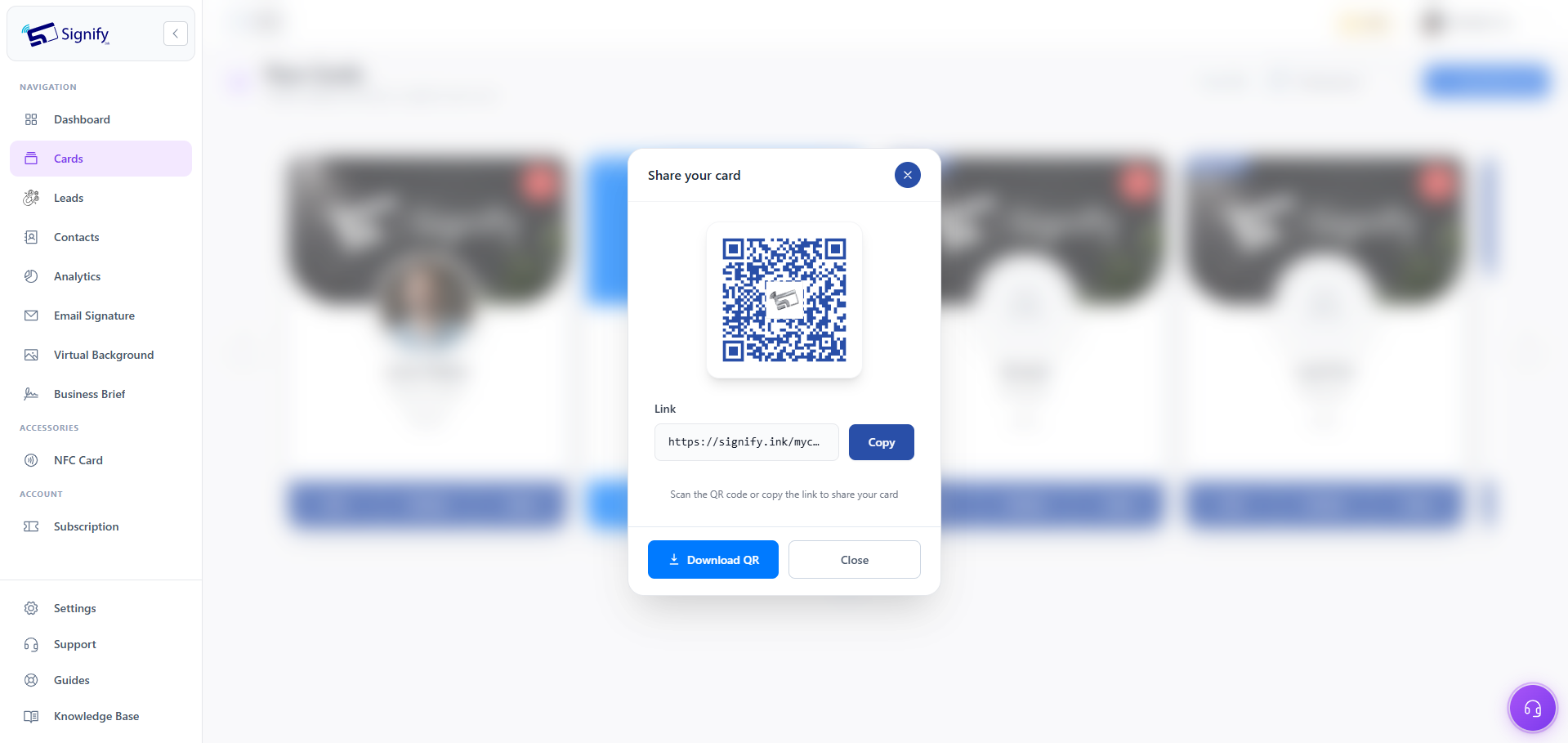
The web sharing tools let you quickly show your QR code, copy your public card link, or download your QR code as an image.
You can also download the QR code from the card's quick actions on its /mycard/{card_id} page.
The public link opens your Signify digital business card in a browser. Anyone can scan the QR code using a phone camera, and they do not need the Signify app simply to view the card.
Share a Signify Card with the Mobile App
Signify users can scan another Signify QR code with the Android or iOS app. When the card opens in the app, the recipient can review the digital business card and choose what to do next.
Depending on the available actions, they can save the card to Contacts or send one of their own Signify cards back as a lead.
Signify app deep links can also open shared card URLs directly in the app when it is installed, providing a faster experience for Signify users.
Share Your Card from a Phone Widget or Smartwatch
When networking or meeting someone in person, you may not want to open the full Signify app every time you share your card. A Signify widget provides quicker access to your sharing QR code.
Phone widget
Add the Signify widget to your phone's home screen or lock screen for quick access to your digital business card sharing QR code.
Smartwatch
A Signify smartwatch widget provides another convenient way to bring up your card while meeting someone, helping you share your QR code without taking out your phone.
Let Anyone Save Your Card from the Browser
Sharing a Signify digital business card does not require the recipient to install the app. Someone who receives your public card link can open it in their phone's browser and view your professional information.
From the public card page, people who do not use Signify can also save your contact details as a VCF file. This makes it possible to add your information to their phone contacts even when they are not Signify users.
As the card owner, you can also use the page's Download QR code quick action to save your QR code image for use in presentations, printed materials, email signatures, websites, or other places where you want to share your card.
Good to know: The public card link is the destination behind your QR code. People can therefore access the same digital card whether they scan the code, tap an NFC card, or open the shared link in a browser.
Save Your Signify Card to a Digital Wallet
Apple Wallet and Google Wallet passes for Signify cards are coming soon.
This planned sharing option will provide another convenient way to keep your Signify card accessible from a mobile wallet.
Share Your Digital Business Card with a Physical Signify NFC Card
For in-person networking, you can order a custom Signify NFC card and link it to one of your Signify digital business cards.
Depending on current availability in the configurator, physical card options can include glossy plastic, wood, and black metal.
Share by tapping the NFC card
Tap the physical Signify NFC card against an NFC-enabled phone. The phone can open the digital card linked to the physical card, giving the other person immediate access to your professional profile.
Share by scanning the QR code
The physical card can also provide a QR code on its back. Someone can scan that code with their phone camera to open the same linked Signify digital card.
Update your card without replacing the physical card
One of the benefits of linking the physical card to your digital card is that you can continue updating your information in Signify. When you change your card details, people using the same NFC tap or QR link can see the updated digital profile.
This means you do not need to reprint the physical card every time your job title, company, contact details, or other professional information changes.
Which Signify Sharing Method Should You Use?
Each Signify sharing method is designed for a different situation:
- QR code: useful for meetings, printed materials, presentations, and quick in-person sharing.
- Public card link: useful when sending your card through messaging apps, email, social media, or websites.
- Signify app: useful when both people use Signify and want to save cards or exchange leads.
- Phone or smartwatch widget: useful when you need fast access to your sharing QR code.
- Physical NFC card: useful for face-to-face networking where tapping a physical business card is convenient.
Regardless of how you share it, the goal is the same: give someone an easy path to your Signify digital business card and your available contact information.
Signify Digital Business Card Sharing FAQ
How can I share my Signify digital business card?
You can share your Signify card using its QR code, public card link, Signify mobile app, phone widget, smartwatch widget, or a physical Signify NFC card.
Can someone view my Signify card without the Signify app?
Yes. Your public Signify card can open in a web browser, so someone can view your professional information without installing the Signify app.
Can I download my Signify QR code?
Yes. Use Download QR in the sharing interface. You can also download the QR code from the quick actions on your card's /mycard/{card_id} page.
Can someone save my Signify card without having a Signify account?
Yes. A person can open your public card in their browser and save your contact details as a VCF file.
Can I share a Signify card with NFC?
Yes. A physical Signify NFC card can be linked to one of your digital cards. An NFC-enabled phone can open the linked card when the physical card is tapped.
Does updating my Signify card update the NFC card?
The physical NFC card remains linked to your digital card. When you update the digital card in Signify, people using the same tap or QR link can see the updated profile.
Are Signify Apple Wallet and Google Wallet passes available?
Apple Wallet and Google Wallet passes for Signify cards are currently listed as coming soon.
Share Your Signify Card Anywhere
Whether you are networking in person, sending a card online, or using an NFC business card, Signify gives you multiple ways to share the same digital profile.
Create or update your Signify digital business card and make it easy for people to connect with you wherever you meet.