How to Set Up an Organization Email Signature Template in Signify
Signify Teams lets your organization create a shared email signature template for employees. Set a consistent company style with your preferred layout, typography, colors, logo and other branding while allowing each team member to use their own professional details from their selected Signify digital business card.
This guide explains how to open the organization email signature editor, customize the default design, review the live preview and save the template for your team.
What Is an Organization Email Signature Template?
An organization email signature template provides a shared starting design for employee email signatures. It defines the company's default branding and formatting so signatures across your organization can have a coordinated appearance.
The template controls shared elements such as the layout, accent color, font settings, company name, website, logo and optional banner. Each member's personal information, including their name, job title and contact details, comes from their selected Signify card.
This approach helps your organization maintain a recognizable brand without requiring every employee to have identical personal information.
1. Open the Organization Email Signature Editor
- Sign in to your Signify account with access to your organization workspace.
- Open your Organization Dashboard.
- Navigate to Templates.
- Select Email Signature.
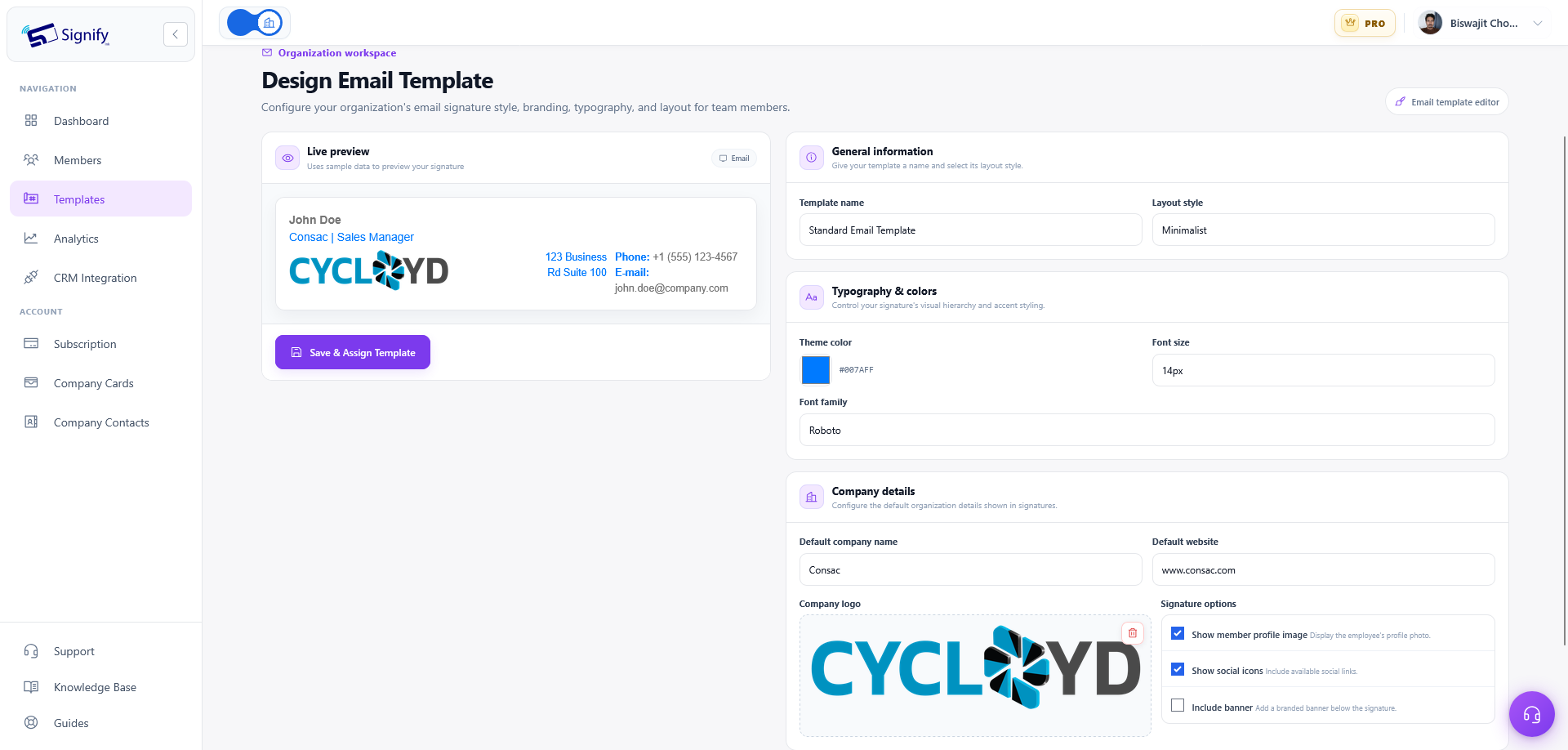
The editor displays the template settings on the right and a sample Live Preview on the left. As you adjust the settings, the preview updates to help you review the selected layout and styling.
About the preview: The live preview uses example information to demonstrate how the template looks. Team members' actual signatures use the information from their own selected Signify cards.
2. Configure Your Organization's Email Signature
Work through the available settings to create a default signature design that fits your company's brand.
Name the Template
Enter a recognizable template name so your organization can identify its default email signature. Choose a clear name that reflects the company's standard branding or intended use.
Choose a Layout Style
Select one of the available layouts: Classic, Modern, Minimalist, Poligon or Banner. Each provides a different starting arrangement for the signature's visual elements.
Classic
A familiar signature style for everyday professional communication.
Modern
A contemporary layout for a current, branded presentation.
Minimalist
A restrained design with a clean, simple appearance.
Poligon
An alternative layout for a more distinctive signature style.
Banner
A layout option for a signature design that includes a banner.
Set Typography and Colors
Choose the accent color, font family and font size for the shared template. Use your company's brand colors and readable typography to keep the signature professional and easy to scan.
Enter Company Details
Set the default company name and company website. These shared details help employee signatures reflect the same organization identity.
Upload or Replace the Company Logo
Add the shared company logo or replace the existing image. Review the live preview to check how the logo fits with the chosen layout, colors and text.
3. Configure Profile Photos and Social Icons
The editor includes options to control which visual elements appear in the shared signature design.
Show or Hide Member Profile Photos
Choose whether the signature should display a member's profile photo. When enabled, the template can incorporate the employee's own profile image as part of their signature.
Choose Whether to Show Social Icons
Configure whether available social icons should appear in employee signatures. Review the preview to see how the icons fit alongside the rest of the design.
These are shared template preferences. The employee's personal information continues to come from their selected Signify card.
4. Add or Replace the Shared Banner
If your organization wants a banner in its email signature, enable the Include banner option in the editor. Enabling it reveals the banner image control.
- Turn on Include banner.
- Use the banner image control to upload a banner or replace the existing image.
- Review the live preview to check how the banner looks with the selected layout and branding.
The banner is a shared branding element of the organization template. If your company does not need a banner, leave the option disabled.
5. Review the Preview and Save the Template
Before saving, review the live preview and confirm that the signature reflects your organization's intended style.
- Check the template name and selected layout.
- Review the accent color, font family and font size.
- Verify the company name, website and logo.
- Confirm whether profile photos and social icons should be shown.
- Check the banner settings and image if you have enabled the banner.
- When the settings are correct, select Save & Assign Template.
This saves the organization's default email signature template so it can provide the shared starting design for members creating new signatures.
6. Understand How the Template Affects Team Members
The organization email signature template combines shared company branding with individual information from each employee's selected Signify card.
Shared Settings Provided by the Template
- Layout style
- Accent color
- Font family and font size
- Company name and website
- Company logo
- Banner settings and image
- Preferences for profile photos and social icons
Personal Details Provided by the Member's Card
- Personal name
- Job title
- Contact details
When a team member creates a new email signature, the organization template provides the default style and shared company details. The member's selected Signify card supplies their personal information.
Important distinction: Saving the organization template changes the shared default. It does not overwrite employees' personal card details or automatically make every member's signature identical.
Why Use a Shared Email Signature Template?
Maintain Consistent Company Branding
Shared colors, typography, company details and logo help employees present a coordinated brand in their professional emails.
Keep Employee Details Personal
Members use information from their own Signify cards, allowing each signature to reflect the employee's name, role and contact details.
Simplify the Starting Process
Employees can start from the company's shared design instead of configuring every branding option from scratch when creating a new signature.
Frequently Asked Questions
Where can I find the organization email signature template?
Open your Organization Dashboard, go to Templates and select Email Signature.
Which email signature layouts are available?
The available layouts are Classic, Modern, Minimalist, Poligon and Banner.
What information appears in the live preview?
The live preview uses example information to demonstrate the template's layout and styling. Actual member signatures use the details from their selected Signify cards.
Can I use a company logo and banner?
Yes. You can upload or replace the shared company logo. To add a banner, enable Include banner and use the banner image control to upload or replace the image.
Can I control whether employee photos and social icons appear?
Yes. The template settings let you choose whether to show a member's profile photo and available social icons.
Does the template replace employees' personal details?
No. Personal names, job titles and contact details come from each member's selected Signify card. The template supplies the shared starting design and company branding.
What happens when I save the organization template?
Selecting Save & Assign Template saves the organization's default email signature template. It provides defaults for members creating signatures and does not overwrite their personal card details.