How to Invite and Manage Signify Teams Members
Signify Teams helps organizations manage employees, invitations and available seats from one place. The Members page lets you invite people to your organization, monitor invitation status, update member details and manage access as your team changes.
This guide explains how to invite team members, what happens when someone accepts an invitation, how seats are counted and how to manage active, inactive and pending memberships.
1. Open the Manage Members Page
Sign in to your Signify account and open your organization dashboard. Navigate to Manage Members to access the member directory and invitation controls.
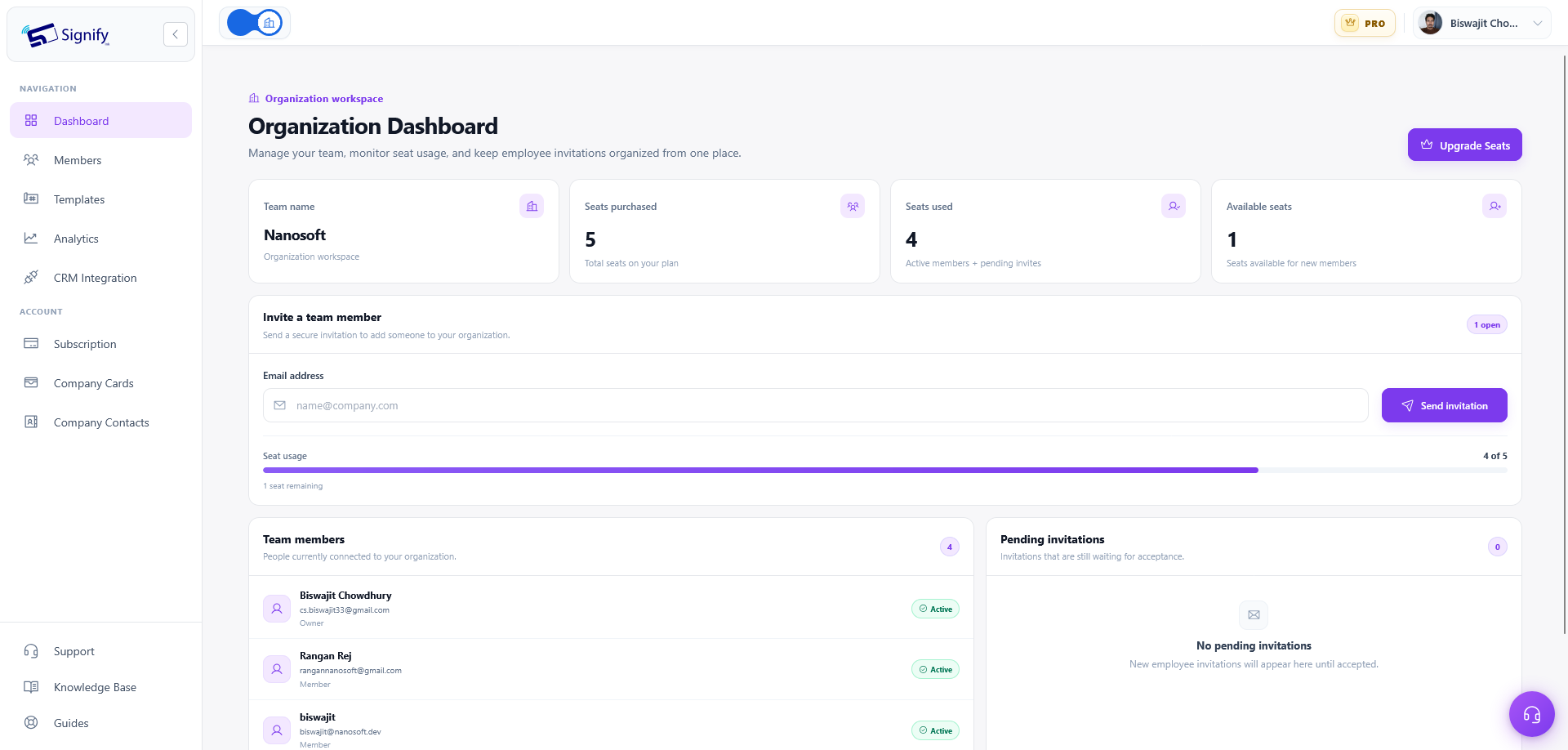
From this page, you can send invitations, review pending invitations, check seat availability, search for members, manage membership status and export the member list.
2. Invite a New Team Member
Inviting someone starts the process of adding them to your organization. An invitation does not immediately create an active membership. The person becomes an active team member after accepting the invitation.
- Open Manage Members from the organization dashboard.
- Enter the email address of the person you want to invite.
- Select Send invitation.
- Signify sends an invitation email containing your organization's name and an Accept Invitation link.
- The recipient opens the email and accepts the invitation to join your organization.
Invitations use the Member role by default. You can review and manage team membership from the Members page.
Important: An invitation expires after seven days. Until an unexpired invitation is accepted, expires or is revoked, it remains pending and reserves a seat.
3. What Happens When Someone Accepts an Invitation?
The joining process depends on whether the invited person already has a Signify account.
If They Already Have a Signify Account
The invitee should accept the invitation using the same email address to which the invitation was sent. After accepting, they become an active member of your organization and receive a team welcome email.
If They Are New to Signify
The invitee accepts the invitation to join the team. Signify creates their account and signs them in. They receive a separate email containing their login email and a generated password, as well as the team welcome email.
The new user should change the generated password after their first login.
4. Resend or Revoke Pending Invitations
A person who has been invited but has not accepted will appear as a pending invitation. You can manage the invitation from the Members page while it is pending.
Resend an Invitation
If someone has not received the email or their invitation link is no longer valid, use Resend. Signify creates a fresh invitation link with a new seven-day expiry period. You can ask the recipient to check their inbox and spam folder for the invitation email.
Revoke an Invitation
Use Revoke when the invitation should be cancelled, for example if the person no longer needs access or the invitation was sent to the wrong email address. Revoking cancels that invitation.
Seat reminder: Each unexpired pending invitation reserves a seat. If you run out of available seats, you must use Upgrade Seats before inviting another person.
5. Understand Member Status and Seat Usage
The Members page summarizes your organization's membership and seat usage. Understanding these statuses helps you manage invitations without exceeding your available capacity.
Active
The person accepted their invitation and currently has an active membership. Each active member uses a seat.
Inactive
The membership remains in the directory but is marked inactive. It no longer counts toward active seat usage. You can reactivate the person later.
Pending Invitation
The invitation has not been accepted. The recipient is not yet a team member, but the unexpired invitation reserves a seat.
How Are Seats Used Calculated?
Signify calculates seats used as the number of active members plus the number of unexpired pending invitations. Inactive memberships are excluded from this total.
| Membership Status | Counts Toward Seats Used? | What Happens Next? |
|---|---|---|
| Active member | Yes | The member can participate in the organization. |
| Inactive member | No | The member can be reactivated later. |
| Unexpired pending invitation | Yes | The recipient can accept the invitation. |
| Expired or revoked invitation | No longer reserves a seat | Resend or issue a new invitation if needed. |
The page also summarizes total members, seats used, available seats and pending invitations. Review these figures before sending additional invitations.
6. Search and Filter the Member Directory
As your organization grows, use the directory's search and filtering options to locate the right person or review a particular group of memberships.
- Search by name or email: Find a particular person in your organization's directory.
- Filter by role: Narrow the directory by the member's assigned role.
- Filter by status: Review active or inactive memberships and pending invitations.
- Export the directory: Export the member list as a CSV file for your organization's records or further analysis.
7. Manage Individual Team Members
The Members page also provides actions for managing an individual membership. The main options are deactivate, reactivate, edit and remove.
Deactivate a Member
Use Deactivate when a person should no longer have active membership in the organization. Deactivation is reversible, and the membership remains in the directory as inactive. Inactive memberships do not count toward active seat usage.
Reactivate a Member
Use Reactivate to restore an inactive membership. Reactivated members become active again and count toward your seat usage.
Edit a Member's Details
Use Edit to update the member's Signify account name and email address. These are the person's account details, not just a team-specific display name. Make sure any changes reflect the correct account information for that user.
Remove a Member
Use Remove when someone should no longer belong to your organization. Removing a member ends their organization membership but does not delete their Signify account. If they need to rejoin later, they must receive a new invitation.
Owner protection: The organization owner is protected and cannot be deactivated or removed from the Members page.
8. Manage Multiple Members at Once
When several memberships need updating, use the checkboxes in the directory to select multiple non-owner members and apply the available bulk actions.
Depending on what you need to do, bulk actions let you deactivate, reactivate or remove selected members. Review your selection carefully before applying an action, especially when removing multiple memberships.
The organization owner is protected from deactivation and removal through this page, including member-management workflows that exclude the owner from eligible actions.
9. Tips for Managing Your Team Efficiently
- Invite the correct email address. Check the address before sending an invitation. Existing users must accept with the email address the invitation was sent to.
- Follow up on pending invitations. Review pending invitations regularly and resend them when recipients need a fresh invitation link.
- Monitor available seats. Active members and unexpired pending invitations both use seats. Check availability before inviting more people.
- Deactivate instead of removing when appropriate. Deactivation preserves the membership in the directory and can be reversed. Removal ends organization membership and requires a new invitation to rejoin.
- Export the directory when needed. Use the CSV export to maintain an external record of your member list.
- Protect account details. Remember that editing a member's name or email changes their Signify account details, not just an organization label.
Frequently Asked Questions
Does sending an invitation immediately add someone to the team?
No. Sending an invitation creates a pending invitation. The recipient becomes an active team member only after accepting it.
How long is a Signify Teams invitation valid?
An invitation expires after seven days. Resending a pending invitation creates a fresh link with a new seven-day expiry.
Do pending invitations use seats?
Yes. Each unexpired pending invitation reserves a seat. Seats used includes active members plus pending invitations. Inactive memberships are not counted.
What happens when I revoke an invitation?
Revoking cancels the pending invitation. The recipient cannot use that cancelled invitation to join the team; a new invitation is required if you still want them to join.
What is the difference between deactivating and removing a member?
Deactivation is reversible and leaves the membership in the directory as inactive. Removal ends the organization membership, but does not delete the person's Signify account. The person must receive a new invitation to rejoin.
Can I edit a member's email address?
Yes. The Edit action updates the member's Signify account name and email address. These are account-level details, not just a team-specific display name.
Can I remove or deactivate the organization owner?
No. The organization owner is protected and cannot be deactivated or removed from the Members page.
Can I manage multiple members at once?
Yes. Select multiple eligible non-owner members using the directory checkboxes and apply the available bulk actions to deactivate, reactivate or remove them.
Can I export the member list?
Yes. The Members page supports exporting the member directory as a CSV file.