How to Create and Manage Signify Organization Card Templates
Organization card templates help your team maintain a consistent brand identity across Signify digital business cards. Set up a shared design with your company's theme, colors, logo and information while allowing each employee to retain their own personal details, such as their name and job title.
This guide explains how to open the template editor, customize your organization's branding, save a template and understand how changes affect existing team cards and new cards.
What Is a Signify Organization Card Template?
A card template is your organization's shared starting design for digital business cards. It defines the common branding and visual elements that employees use to represent the company.
Instead of asking every employee to configure the company logo, colors and other shared details independently, your organization can manage these elements through its active template.
The goal is to keep the company's presentation consistent while preserving each employee's individual identity and professional contact details.
1. Open the Organization Template Editor
- Sign in to your Signify account with access to your organization workspace.
- Open your Organization Dashboard.
- Navigate to Templates.
- Open the template editor to configure your organization's shared card design.
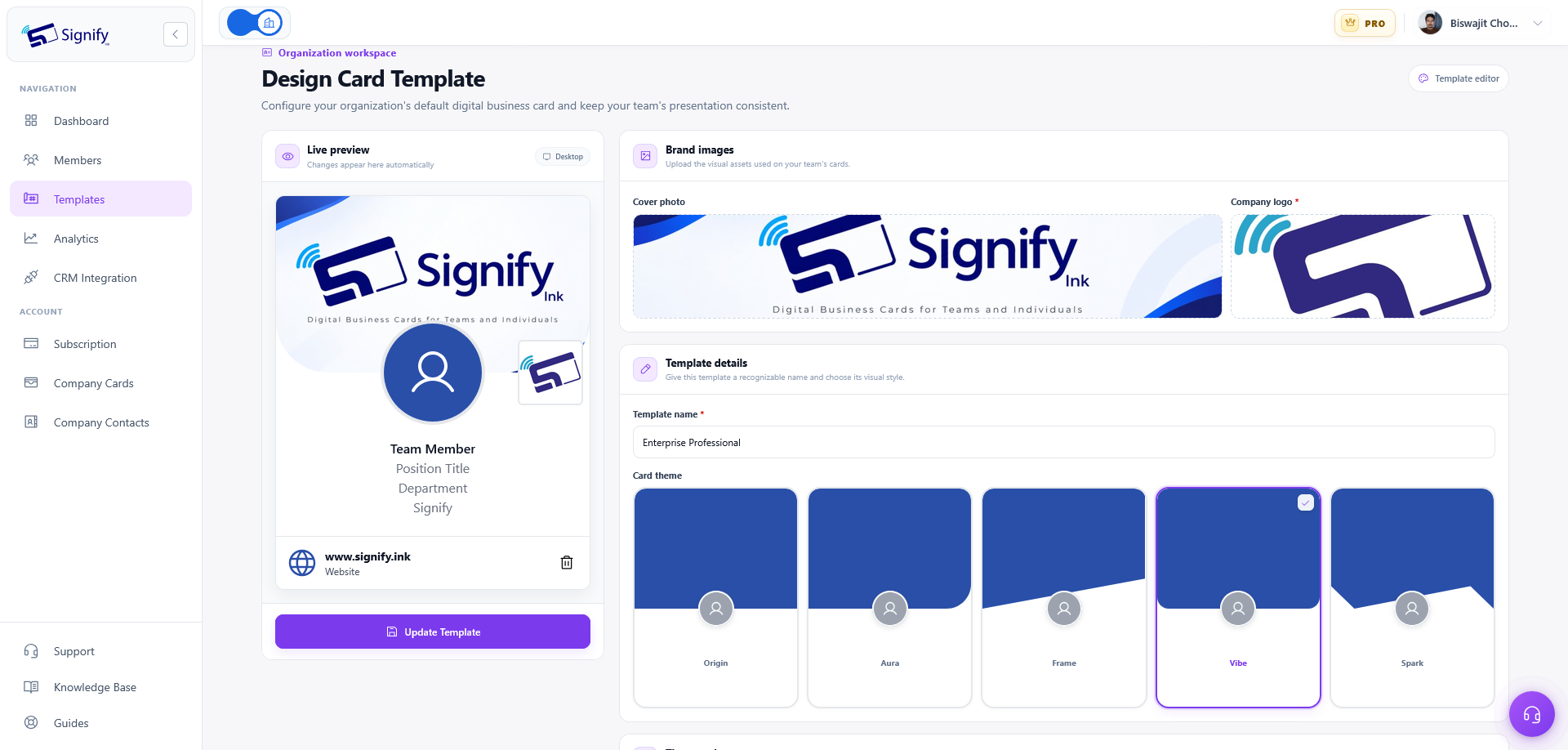
The editor displays a live card preview alongside the template settings. As you change the theme, color or branding information, the preview updates so you can review the design before saving.
2. Configure Your Organization's Card Template
Customize the template to reflect your company's branding. Work through the available settings and use the live preview to check how the overall card looks.
Name Your Template
Give your template a recognizable name so your team understands its purpose. Examples include Company Standard or Sales Team.
Choose a Card Theme
Select one of the available Signify card layouts: Origin, Aura, Frame, Vibe or Spark. Choose the layout that best suits the visual style your organization wants employees to share.
Set Your Theme Color
Choose a preset color or use the color picker to select a color that matches your company branding. This sets the template's accent color.
Upload Your Brand Images
Add your company logo and, if needed, a cover photo. The editor recommends 512 × 512 pixels for the logo and 1200 × 675 pixels for the cover image.
Enter Your Company Details
Add the company name and, optionally, your company website. The logo and company name are required; the website and cover photo are optional.
3. Prepare Your Company Logo and Cover Image
Good-quality brand images help your team cards look consistent and professional. Use the editor's recommended dimensions when preparing your assets.
| Asset | Recommended Size | Required? |
|---|---|---|
| Company logo | 512 × 512 pixels | Yes |
| Cover photo | 1200 × 675 pixels | No |
| Company name | Text field | Yes |
| Company website | Website address | No |
Before uploading, check that your logo is clear and that the cover photo suits the card's layout. Keep important branding elements visible so the design remains recognizable in the live preview.
Required fields: You must provide a company logo and company name to create or update the organization template. The cover photo and website are optional.
4. Review the Live Preview and Save
Once you have configured the template, review the live preview to make sure the visual elements work together as intended. Check the selected layout, accent color, company logo, cover image and company information.
- Confirm that the template name is meaningful to your team.
- Check the selected theme and theme color.
- Review the company logo and optional cover photo.
- Verify the required company name and any optional website.
- When creating a new template, select Create Template. When changing an existing template, select Update Template.
Use the preview to catch design issues before saving. The saved template becomes your organization's active shared template.
5. Understand How Template Updates Affect Team Cards
Your organization has one active template. Updating it synchronizes the shared branding fields to team members' cards, helping the organization maintain a consistent look without asking each employee to rebuild those elements.
What Gets Synchronized?
- Company name
- Card theme
- Theme or accent color
- Cover photo
- Company logo
- Company website
What Remains Personal?
Employees' personal details, such as their names and job titles, remain their own. The shared template controls company branding, not the individual identity of each team member.
Before updating: Because template changes synchronize shared branding fields across team members' cards, review the preview carefully before selecting Update Template.
6. Use the Active Template for New Team Cards
The active organization template is also provided as a starting point when members create cards through a template-enabled flow. This helps new employee cards follow the organization's branding from the beginning.
Employees do not need to configure the shared company design from scratch in these flows. The template supplies the organization's branding elements, while the employee's personal details remain individual.
Using a shared starting design makes onboarding easier and helps reduce unnecessary differences between cards created by different team members.
Frequently Asked Questions
Where do I find organization card templates?
Open your Organization Dashboard and select Templates to access the template editor.
Which card themes can I use?
The available themes are Origin, Aura, Frame, Vibe and Spark. You can select a theme and set its color in the editor.
Is a company logo required?
Yes. A company logo and company name are required to create or update the template. A cover photo and company website are optional.
What image dimensions are recommended?
The editor recommends 512 × 512 pixels for the company logo and 1200 × 675 pixels for the cover photo.
What happens when I update the active template?
The shared company name, theme, accent color, cover photo, logo and website are synchronized to team members' cards. Personal information, such as employee names and job titles, remains individual.
Can the active template help with new employee cards?
Yes. The active template is provided as a starting point when members create cards through a template-enabled flow, helping new cards follow the organization's branding.
How do I save my template?
Review the live preview and select Create Template for a new template or Update Template to save changes to the existing template.