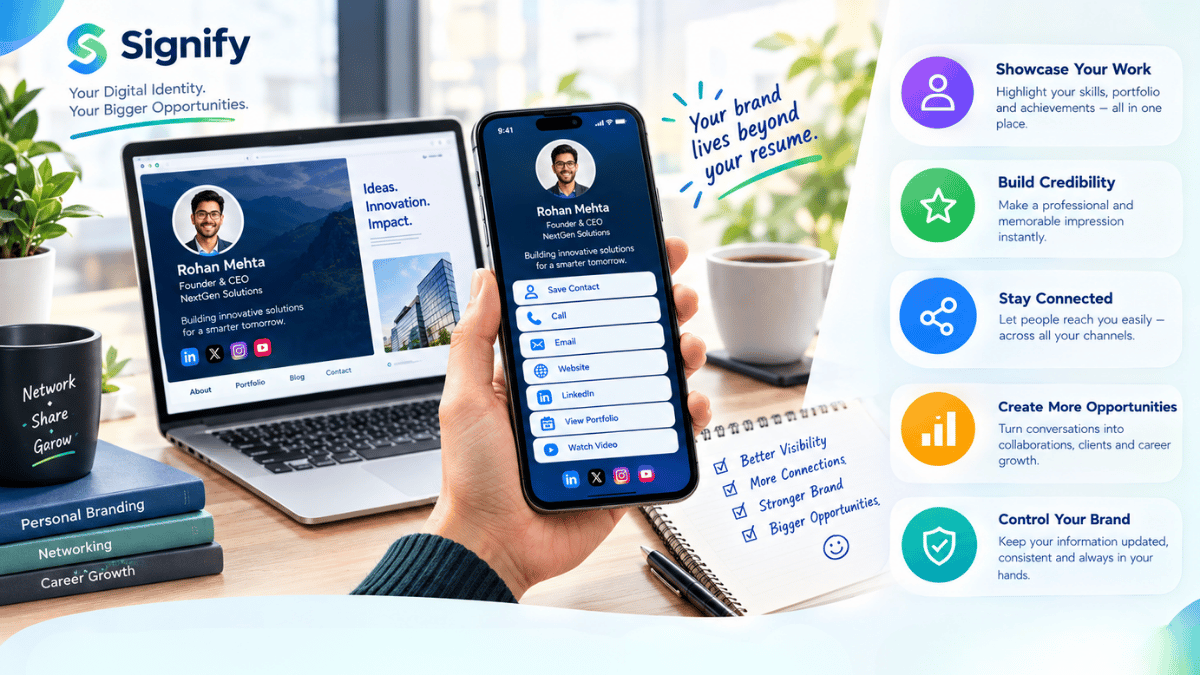
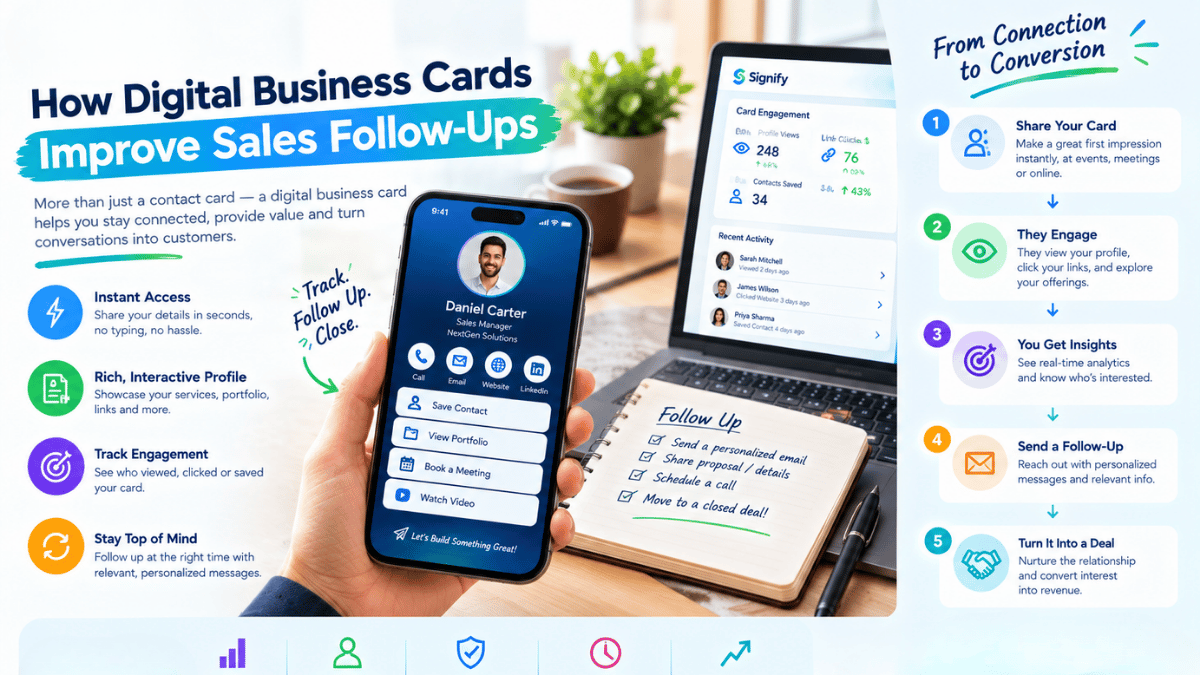
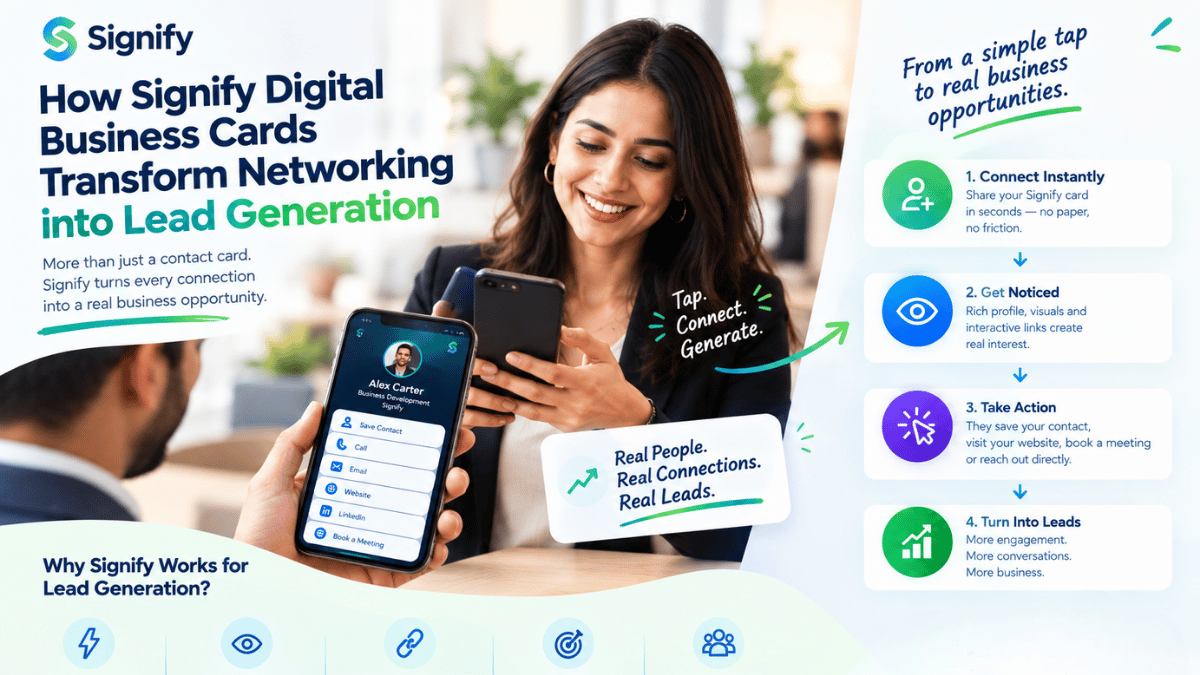
A professional Signify digital business card gives people a simple way to learn who you are, what you do, and how to contact you. Instead of handing over a paper card or asking someone to save several separate links, you can share one digital profile with your professional details and useful contact options.
This step-by-step guide explains how to create a new card or edit an existing one on Signify.ink. You will learn how to add images, customize the design, fill in your professional information, organize contact links, preview the result, and share your card using a direct link or QR code. The steps below follow the Signify card editor and the fields available in the current workflow.
What is a Signify digital business card?
A digital business card is an online profile that brings professional identity and contact details together in one place. A Signify card can include your name, job title, company, profile image, contact information, social profiles, messaging links, and other relevant business links. You can then share the profile with someone you meet at an event, during a client conversation, in a follow-up email, or through your existing online channels.
A useful digital card does more than repeat the information on a printed card. It gives the person receiving it a clear next step: open your profile, select a contact method, visit an important link, or save your contact details. Your Signify card can be shared through its link or QR code, making it practical for in-person and remote networking.
If you are comparing options for your business, explore the Signify digital business card overview and the available Signify solutions to understand how digital cards fit into your workflow.
Before you start: prepare your card details
You will get a better result if you gather the information before opening the editor. This reduces interruptions and helps you check spelling, links, and visual consistency in one pass. You do not need to publish every possible detail; focus on information that helps people recognize you and connect with you professionally.
- Professional identity: your name, job title, department, and company name, as applicable.
- Profile imagery: a clear profile picture and, when useful, a cover photo or company logo.
- Preferred contact methods: a business email address, phone number, website, or office address if you want to display it.
- Relevant profiles: direct links to the social networks, messaging services, or business platforms you actually use.
- Brand direction: a color and theme that fit your personal brand or company identity.
Before adding a link, open it in a separate browser tab to make sure it works and leads to the right destination. Avoid putting private information on a public-facing card unless you intentionally want to share it.
Create a new Signify digital business card
Sign in to your Signify account and open the card creation workflow at Create a Card. Begin by choosing a clear Card Name. This name helps you identify the card inside your account; choose something meaningful if you plan to manage more than one card for different roles, projects, or professional contexts.
Continue through the editor's sections and complete the required fields. The editor is designed to let you work on the card's appearance, information, and fields, then review the result in the preview. You can return to individual sections to make adjustments before saving.
Add a profile picture, cover photo, and logo
Images help people recognize your profile and can make your digital business card feel more complete. Start with a clear, current profile picture. If your work is connected to a company or brand, consider adding a logo and a cover image that supports the same visual identity. Use images you have permission to publish and avoid designs with tiny text that becomes unreadable on mobile screens.
The Signify card editor provides image upload and crop controls. The following dimensions are starting recommendations from the card workflow; the best crop may vary based on the image and how the editor displays it.
| Image type | Suggested crop | Practical recommendation |
|---|---|---|
| Profile picture | 512 × 512 px | Use a sharp, well-lit portrait with enough space around the face. |
| Cover photo | 1200 × 675 px | Choose a simple image that complements your profile and leaves room for content. |
| Company logo | 512 × 512 px | Prefer a high-quality source image with clear contrast and minimal surrounding whitespace. |
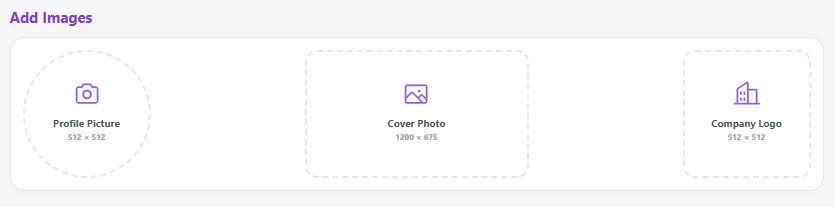
After uploading an image, review its crop in the live preview. Make sure the subject is not clipped, the logo remains legible, and the cover image does not compete with important text. Use descriptive alternative text for meaningful images when adding screenshots or illustrations to the article; useful alt text describes what the image actually shows rather than repeating keywords.
Customize the design, theme, and colors
The design should support your professional identity rather than distract from it. Select a theme that suits the impression you want to make, then check that text and visual elements remain easy to understand. Signify's editor includes the Origin theme by default, with Aura, Frame, Vibe, and Spark available to Pro users. Theme availability can depend on your plan.
You can choose from preset theme colors, and Pro users can use the custom color picker for additional control. If you are setting up a card for a company, use colors that align with the company's existing brand guidelines. For a personal card, a restrained accent color and a neutral background usually keep contact details readable.
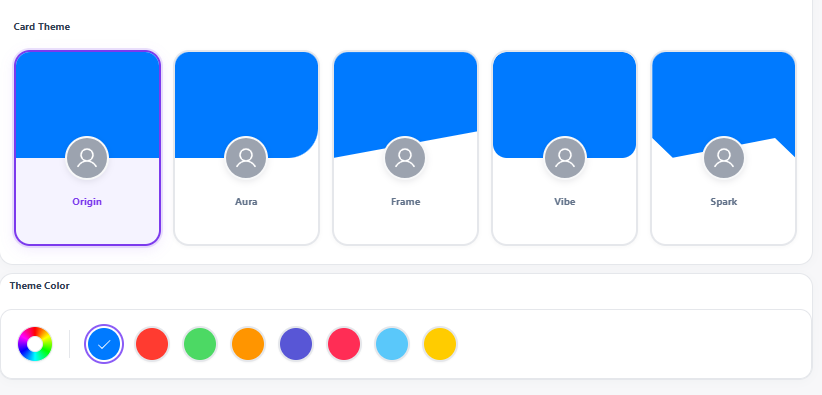
Check the design at the size people are likely to view it. A layout that looks balanced on a large desktop monitor may feel crowded on a phone. Prioritize contrast, legibility, and a clear reading order over decorative effects. If you use a logo, check that it remains recognizable against its background.
Add accurate professional information
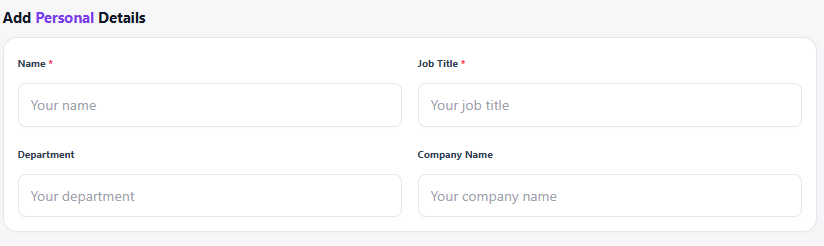
Your name and job title are key fields in the Signify card editor. Add your department and company name where relevant. Write the title in a way clients and colleagues will understand; avoid unexplained abbreviations if the card is intended for people outside your organization. Check spelling and capitalization, particularly for company names and professional qualifications.
Keep the information current. When you change roles, move to a new company, or use a different professional email address, update the card rather than continuing to share an out-of-date profile. This is one of the practical advantages of a digital business card: you can edit the stored information and then share the same updated profile.
Add the contact methods and online profiles you use
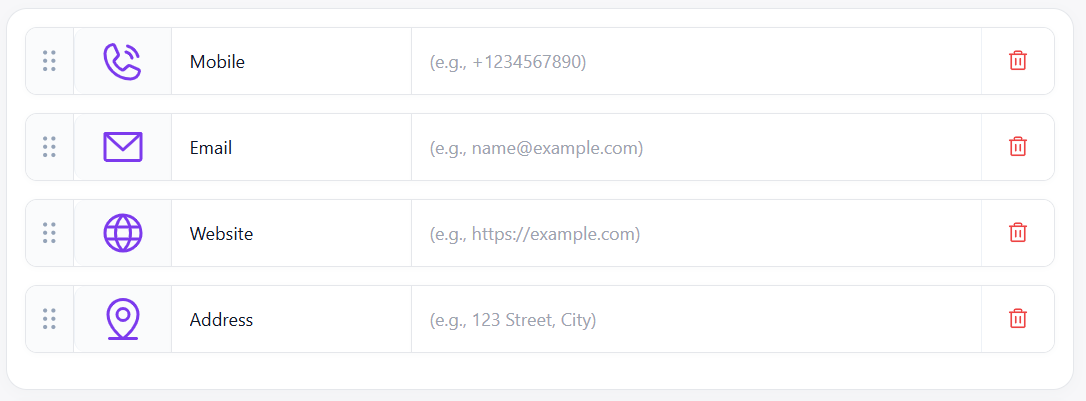
Contact fields turn a profile into a useful networking tool. In the Signify editor, you can add available general contact fields such as phone, email, website, and address. Add only the details you are comfortable making available to viewers of your card. For a customer-facing card, a business email and professional phone number may be more appropriate than personal contact information.
Connect your relevant social profiles
You can add social accounts such as X, Facebook, Instagram, LinkedIn, and YouTube. Choose the profiles that support your professional goals. For example, a consultant may prioritize LinkedIn and a company website, while a designer or content creator may want to include a portfolio or video channel. The goal is not to list every possible platform; it is to give a new contact useful next steps.
Make messaging and business links easy to use
The editor also offers messaging services such as Microsoft Teams, WhatsApp, Discord, and Telegram, along with business and payment links such as GitHub and PayPal. Available fields may vary with the card editor and your use case. Make sure each URL or value is correct and points to a profile you actively maintain.
- Use direct links: link to the exact professional profile rather than a generic homepage when that is more helpful.
- Prioritize the most important options: put the contact methods you want people to use first.
- Review privacy: check that public profile links do not reveal information you did not intend to share.
- Test each destination: open every link before sharing the card with clients or event attendees.
Preview your card and save changes
Before saving, take time to inspect the card as a visitor will see it. The Signify editor includes a live preview so you can review the combination of images, text, colors, theme, and contact fields. Check the entire card from top to bottom rather than focusing only on the first screen.
Confirm that your name and job title are visible, that the company logo is not clipped, and that every link has the expected label. Look for awkward line breaks, low-contrast text, duplicate information, and fields that no longer belong on the card. If you are working on a phone, use the editor's Display, Information, and Fields tabs to move between the relevant sections and open Preview when you want to review the whole card.
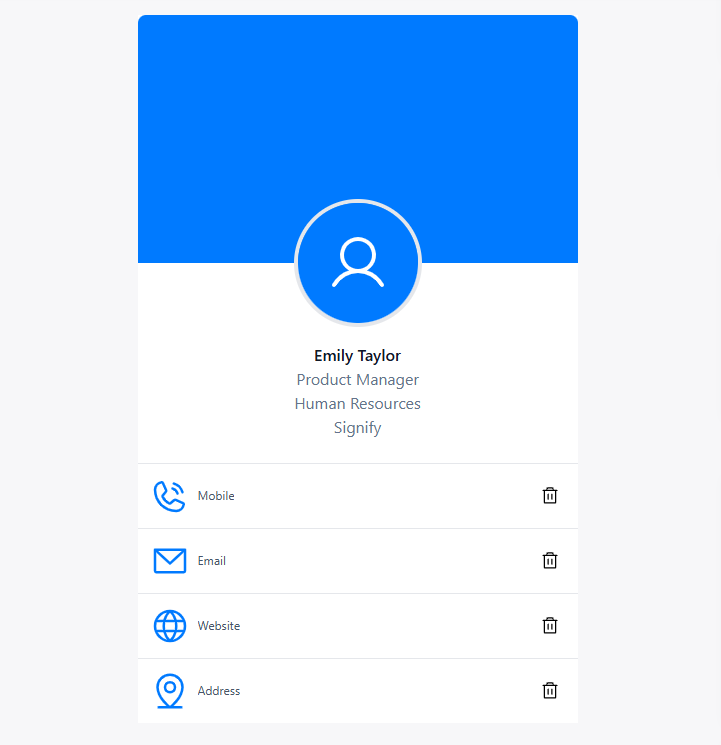
When the card looks correct, select Save Card. If you are editing a card, confirm that you are updating the intended card. Saving a draft of your details in an external note is also useful if you are preparing several cards for different roles or audiences.
Share your card using its link or QR code
After saving, open Cards in your Signify account. The card actions include options such as Preview, Edit, and Share. Open the sharing modal to copy the card's URL or download the QR code. You can then add the link to an email signature, a meeting follow-up, a profile, or a message where it is relevant.
A QR code can be useful at conferences, business meetings, networking events, or on printed materials. Before an event, scan your QR code with a phone camera and verify that it opens the correct card. If you print the code, keep it large enough to scan and provide a quiet border around it so surrounding design elements do not interfere.
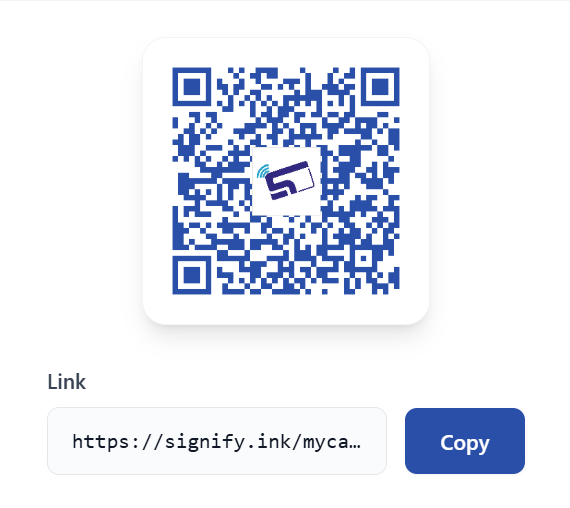
A recipient can open the shared card in a browser. According to the current Signify workflow, people who do not use the app can still view the web card and download the contact information as a VCF file. Signify app users can also scan and save cards through the app. For details about QR sharing, visit the Signify smart QR code page.
How to edit an existing Signify digital business card
You do not need to create a new card every time your details change. Open Cards in your Signify account, locate the card you want to update, and select Edit. Review the image, theme, professional details, and contact fields in the editor. Update only what has changed, but use the opportunity to check whether the rest of the card is still accurate.
- Open the right card. Confirm the card name before editing so you do not change a card intended for a different role.
- Update the information. Replace old contact details, correct your role or company, and remove links that are no longer useful.
- Review the design. Check the profile image, logo, theme, and field order, especially if you have added or removed information.
- Preview the result. Inspect the public-facing card and test important links.
- Save the card. Save the changes before sharing the card again.
After editing, it is a good idea to open the share link from a separate browser session or private window. That quick check helps you confirm the correct card is being shown and that the most important details are visible without needing an explanation from you.
Professional digital business card best practices
A well-made card respects the viewer's time. It should show your identity clearly and make the next action obvious. These practices help keep your Signify digital business card useful as your professional information evolves.
- Keep your profile current. Update your job title, company, contact details, and public links when they change.
- Use consistent branding. Choose imagery and colors that complement your website or organization.
- Make the key action easy to find. Put primary contact options and high-value links before secondary profiles.
- Design for mobile viewing. Use readable images, concise labels, and uncluttered fields.
- Only share what is appropriate. Review contact and address information before making a card public.
- Test links and QR codes. Open each destination and scan the code with a phone before distributing it.
- Use meaningful link destinations. Send visitors to a relevant page, portfolio, or profile instead of an unrelated landing page.
If you need cards for a broader organization, explore Signify for Teams and review the available Signify plans and pricing. Those pages are the best place to check the current features and plan availability for your specific requirements.
Common mistakes to avoid
Adding too many links
Every extra field competes for attention. Select the links that best support the conversation you want to have with a new contact. Remove inactive social accounts and avoid duplicate ways to reach you unless there is a clear reason to include them.
Using outdated or low-quality images
A blurry logo, an old portrait, or a cover image with poor contrast can make the whole card feel less polished. Use current, appropriately sized images and check the crop in the preview. For article screenshots, use descriptive filenames and alt text that explains the actual interface shown; do not stuff alt attributes with repeated search keywords.
Forgetting to test the card after saving
A card can look correct in the editor while an external link still points to an old profile. Open the public card, click the most important contact options, and scan its QR code once before sharing it widely. Repeat the check after any substantial edit.
Writing for search engines instead of people
Include phrases such as Signify digital business card and Signify.ink where they help readers understand the product, but do not repeat them unnaturally. Helpful explanations, clear headings, relevant screenshots, accurate links, and a well-organized page are better for readers than keyword repetition alone.
Frequently asked questions
How do I create a Signify digital business card?
Open Create a Card in your Signify account, add your professional information and relevant links, customize the appearance, review the live preview, and select Save Card.
Can I edit my existing Signify digital business card?
Yes. Open Cards, select Edit on the card you want to change, update the fields or design, preview the result, and save your changes.
What details can I add to my Signify card?
The card editor supports professional details such as name, job title, department, and company name, plus available contact, social, messaging, and business profile fields.
Can I share a Signify card with a QR code?
Yes. Open the card's Share options to copy its link or download the QR code. Scan the code before distributing it to make sure it opens the intended card.
Can someone view my digital business card without the Signify app?
Yes. A recipient can open the shared card link in a web browser. The current Signify workflow also lets visitors download contact information as a VCF file.
Which image sizes should I use?
The editor guidance suggests a 512 × 512 pixel crop for profile pictures and company logos and a 1200 × 675 pixel crop for cover photos. Check the preview to ensure the image is cropped correctly.
Where can I learn more about Signify?
Visit Signify.ink to explore digital business cards, smart QR codes, NFC cards, and other Signify solutions.
Ready to create your Signify digital business card?
Bring your professional identity and useful contact links together in one shareable profile. Review your details, preview the card, and share it with the people you meet.
Create your digital business card