
Designing Accessible Digital Business Cards: A Guide to Inclusive Professional Networking
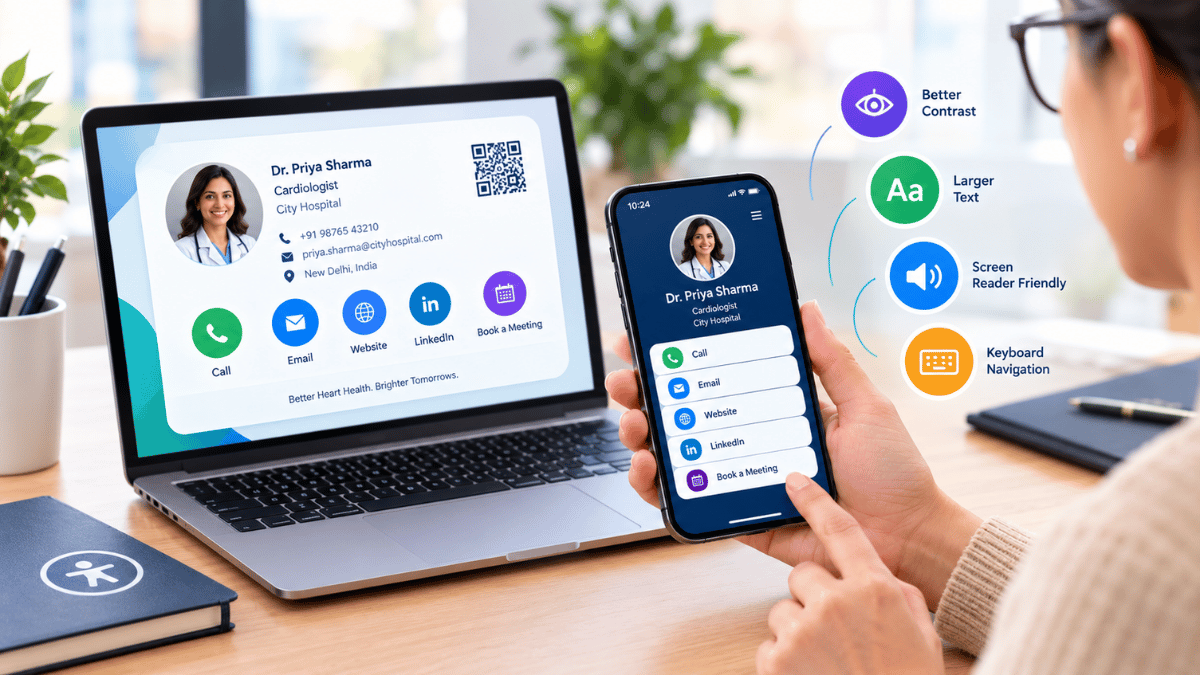
A digital business card should make professional information easier to access, not create another barrier. Thoughtful, inclusive design helps people connect, explore professional profiles, and share contact information with greater confidence.
Introduction
Accessibility begins with thoughtful design.
A digital business card should make professional information easier to access, not create another barrier. A profile may look attractive but still be difficult to use if its text is too small, its colors lack contrast, or its navigation is confusing.
Accessible design helps more people use digital profiles comfortably, including people with visual, motor, cognitive, or other accessibility needs.
Why Accessibility Matters in Digital Networking
Professional connections should be available to everyone.
Professional information is useful only when recipients can access and understand it. An inaccessible profile may prevent someone from reading contact details, locating a website, or activating a contact button.
Inclusive design improves usability for a wider audience, including people using mobile devices in bright environments or navigating a page with assistive technology.
Better Readability
Clear typography and suitable spacing make important professional details easier to understand.
Easier Navigation
Predictable layouts and descriptive controls help visitors find the information they need.
Wider Accessibility
Alternative ways to access a profile can support people with different needs and preferences.
More Inclusive Connections
Accessible contact details help more people participate in professional networking.
Five Principles of Accessible Digital Cards
Five practical ways to create a more inclusive digital profile.
Readable Typography
Use legible fonts and text sizes that remain comfortable on smaller screens. Avoid long passages in decorative typefaces.
Sufficient Color Contrast
Ensure text and interactive elements remain distinguishable from their backgrounds. Do not rely on color alone to communicate important information.
Clear Navigation
Organize contact information and links in a predictable structure. Give buttons descriptive labels so visitors understand their purpose.
Accessible QR Code Sharing
Provide a direct link alongside a QR code. This gives users another way to open the profile when scanning is inconvenient or inaccessible.
Offer an alternative
Let visitors access a digital business card through a descriptive, clickable web link as well as a QR code.
Mobile-Friendly Layouts
Make interactive elements easy to identify and activate. Avoid layouts that require excessive zooming or precise gestures.
Accessibility and Screen Readers
Make digital profiles easier for assistive technologies to interpret.
Where the platform supports it, meaningful headings, descriptive links, accessible form labels, and text alternatives for important images help assistive technologies interpret the profile.
A professional headshot or company logo should not be the only way to communicate essential information.
Test Your Digital Profile
Review accessibility before sharing your card.
Review the profile on different screen sizes, test keyboard navigation where applicable, check contrast, and verify that links and buttons have clear purposes.
Accessibility should be considered throughout the design process rather than added as an afterthought.
Accessibility Review Checklist
- Check text readability and spacing on small screens.
- Verify sufficient contrast between text and backgrounds.
- Confirm links and buttons have descriptive labels.
- Provide a direct profile link as an alternative to a QR code.
- Test keyboard navigation and assistive technology where applicable.
- Ensure essential information is available as text.