 Signify.ink

Signify and LinkedIn solve two different problems in professional networking, and the most effective networkers use them together. Signify handles the moment of introduction — the handshake, the QR scan, the NFC tap — and turns it into a saved contact in seconds. LinkedIn handles what happens afterward — the ongoing relationship, the professional narrative, the discoverable track record. Neither replaces the other. This guide explains how to use them as a coordinated workflow: how to set up your Signify card so LinkedIn is prominent, how to make your LinkedIn profile worth visiting once they arrive, and the sequence that turns a first meeting into a durable professional connection.
A quick clarification before going further, because the "Signify x LinkedIn" framing can be misread: this is not an API integration between the two platforms. There is no automatic data sync from Signify to LinkedIn. What exists is a workflow — you add your LinkedIn URL to your Signify digital business card as one of the links, and when someone scans your card, they can tap through to LinkedIn in a single step. The value comes from the sequence, not from a technical connection. This is worth stating plainly so expectations match reality.
The two pillars of modern networking
Most networking advice treats "digital networking" as a single activity. In practice, modern professional networking has two distinct phases, each solved by a different tool.
Phase 1 is the introduction. You meet someone — at a conference, a coffee shop, a client dinner, a video call. The goal is to capture a contact before the moment passes. This is where Signify operates. A tap or scan turns a brief interaction into a saved profile in the recipient’s phone. The friction that kills most paper-based follow-ups disappears.
Phase 2 is the relationship. Once a contact exists, the question becomes how to keep it warm. This is where LinkedIn operates. It’s where the professional narrative is visible — job history, current role, posts, comments, mutual connections — and where most modern professional follow-up happens. You cannot build a relationship from a saved contact alone; you need a place where the relationship can develop.
The two tools are complementary because they solve different problems. Signify captures; LinkedIn develops. A professional who uses only one is running at roughly half the effectiveness of one who uses both.
What Signify does
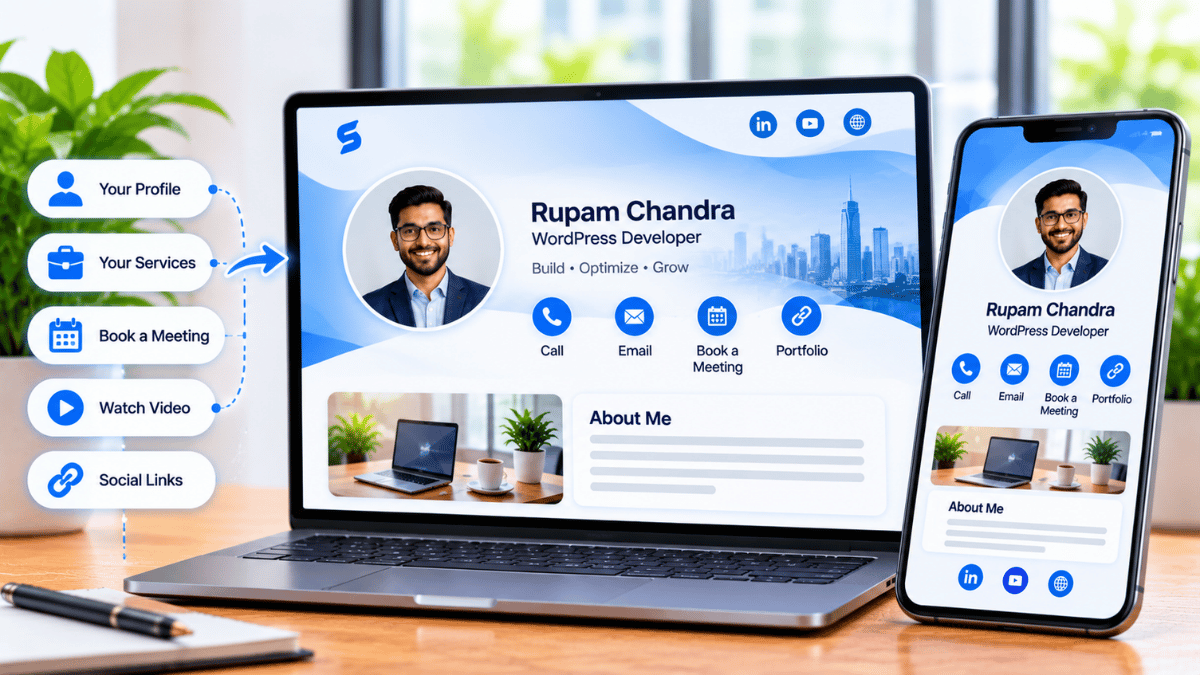
A Signify digital business card is a live, shareable professional profile that replaces paper cards. Its purpose is to make the introduction instant, current, and measurable. Four capabilities matter most in the Signify-plus-LinkedIn workflow.
Instant sharing via QR or NFC
Signify cards are shared by dynamic QR code, NFC tap, direct link, or email signature. The recipient never installs an app; the profile opens in a browser. For an in-person exchange, a tap or scan takes under a second — much faster than the awkward moment of fumbling for a paper card while talking.
One central hub for all your links
Your Signify card can carry a LinkedIn URL, a portfolio, a calendar booking link, a company website, and a phone or email — all on one page. Rather than telling someone “you can find me on LinkedIn, or on my website, or…” you hand them one link that goes to everything. The LinkedIn link is usually the second-most clicked link on a professional’s Signify card (after the direct contact link), which is why it deserves prominence.
Always up to date
When your role, company, or contact details change, update your Signify card once and every saved copy reflects the change. This matters because a LinkedIn URL pointing to an outdated role is worse than no LinkedIn URL at all — the recipient arrives at the profile expecting current information and finds a mismatch. Signify and LinkedIn stay synchronized only if you keep both updated (LinkedIn is where the actual updates live; Signify is where the link points).
Analytics on the LinkedIn click
Every link on a Signify card reports clicks. That means you can see which of your card views turned into a LinkedIn click — a useful signal for understanding whether your LinkedIn profile is interesting enough to visit. If 50 people viewed your card this month and 3 clicked through to LinkedIn, the LinkedIn side of the workflow may be underselling you. The digital business card page explains how the analytics layer works.
What LinkedIn does
LinkedIn is the largest professional social network in the world, with over one billion members. For the purpose of this workflow, three capabilities are what matter.
The professional narrative
LinkedIn is where your professional history lives — roles, employers, education, skills, recommendations, and posts. A Signify card can point to this narrative, but it cannot replace it. When someone taps the LinkedIn link on your Signify card, they are arriving at the full version of your professional story. That arrival is the moment the relationship can begin.
The network graph
LinkedIn shows mutual connections, recent posts, and shared interests. This context is what turns a new contact into a warm conversation. “We both know three people” or “I see you posted about X” is the type of conversational opener that Signify cannot provide — but Signify can hand the recipient to LinkedIn, where that context exists.
Ongoing engagement
A Signify card is a snapshot of identity; a LinkedIn profile is where that identity continues to update and where the conversation can continue. Commenting on posts, sharing articles, and messaging through LinkedIn are the mechanisms by which a saved contact becomes a real relationship.
The five-step synergy workflow
The value of using Signify and LinkedIn together comes from the sequence. Each step is small, but the compounding effect over dozens of meetings per month is substantial.
Step 1 — Meet and connect
The initial meeting happens in person, on a video call, or in a chat thread. Nothing special is required beyond the ordinary professional interaction. The workflow starts when the moment arrives to exchange contact information.
Step 2 — Share your Signify card
Instead of a paper card, present your Signify QR code or tap your NFC card against the other person’s phone. The profile opens in their browser. The recipient now has your name, title, photo, phone, email, and links — including the LinkedIn URL — in one place, saved to their phone in one tap.
Step 3 — One-tap LinkedIn access
Because LinkedIn is one of the links on your Signify card, the recipient can tap it directly. They do not need to search for you by name (which would surface multiple results and risk a wrong match) or save the URL to type later. The LinkedIn profile opens in their browser or native app, whichever they prefer.
Step 4 — Send a personalized connection request
A connection request sent within minutes of meeting has dramatically higher acceptance and response rates than one sent three weeks later. The recipient has the context fresh — they remember you, the conversation, and the event. A short note mentioning where you met and what you discussed turns a generic connection request into a warm one.
Step 5 — Nurture the connection
The connection request is the beginning, not the end. Follow-up on LinkedIn — a message, a comment on a recent post, a share of their content — is what turns a contact into a relationship. Signify’s role is done at step 2; LinkedIn carries the relationship forward. The two tools together cover the entire lifecycle from first meeting to ongoing engagement.
Faster follow-up
The connection request can be sent before the conversation even ends. The window of maximum recall is preserved.
Context-rich requests
The recipient has just seen your Signify card, which means they already know your role, your company, and what you do. The connection request lands with full context.
Updatable over time
If your Signify card changes, the LinkedIn link keeps working. The two surfaces stay in sync as long as you update both when something material changes.
Measurable
Signify analytics show how many card views turned into LinkedIn clicks. You can tell whether the workflow is producing the follow-through you want.
Why the combination outperforms paper
The comparative case rests on three well-documented points. None of them is a fabricated chart — they are directional findings that hold up under scrutiny.
Paper cards fail at capture
Approximately 88% of paper business cards are discarded within a week, and fewer than one in ten ever makes it into a CRM. The contact exchange that paper promises almost never happens. A Signify card captures the contact in the recipient’s phone at the moment of exchange, which is the entire reason the workflow works.
Digital cards convert better
Signify’s own analysis of face-to-face interactions across professional sales teams found that paper cards convert roughly 12% of handshakes into a tracked contact, while Signify digital cards convert over 36% — a three-fold increase. The mechanism is not mysterious: the contact is saved automatically, at the moment of highest attention.
Warm follow-up outperforms cold outreach
The warm-intro effect in professional networking is well-documented. A LinkedIn connection request sent within minutes of meeting someone — with a personalized note and with the recipient having just seen your profile — is dramatically more likely to be accepted and acted on than an out-of-the-blue request weeks later. The Signify-plus-LinkedIn workflow is essentially industrializing the warm intro effect at scale.
The compounding effect matters more than any single figure. If the workflow produces even a modest increase in follow-through per meeting, the value multiplies across the dozens or hundreds of meetings most professionals attend in a year.
Signify best practices
A Signify card is only as useful as its setup. These are the practices that separate cards that produce a LinkedIn click-through from cards that get viewed and forgotten.
Make LinkedIn the top link
Signify cards can carry several links. Place your LinkedIn profile near the top, alongside your primary contact method. This is the link most recipients want to click. Putting it below three other links loses most of the click-through.
Match your Signify photo to your LinkedIn photo
Consistency signals professionalism and prevents the “is this the same person?” hesitation. When the recipient clicks through to LinkedIn, seeing the same face they just met (and the same face on the Signify card) makes the connection feel seamless.
Keep your bio specific
“Founder at Company” is a title, not a bio. A specific bio — “I help B2B SaaS founders turn cold outbound into warm pipeline” — gives the recipient something concrete to ask about when they click through to LinkedIn. Specific bios outperform generic ones in card-to-LinkedIn conversion because they create a hook.
Test the QR and NFC before events
Scan your QR code with a phone that isn’t yours, and tap your NFC card against a device that isn’t yours. Confirm that the profile opens and the LinkedIn link works. Two minutes of testing prevents the most embarrassing failure mode — a card that doesn’t open at the exact moment you need it to.
Update your card when your details change
The moment your LinkedIn role updates, update your Signify card to match. Otherwise, a recipient taps the LinkedIn link, arrives at a profile showing your current role, but the Signify bio still says the old one. Small mismatch, but it costs trust. Keeping both updated is the discipline that makes the workflow seamless.
If you want to try the workflow without commitment, create a free Signify card, add your LinkedIn URL, and test the click-through. The free tier is enough to evaluate the workflow before upgrading to a paid plan. See the pricing page for plan details.
LinkedIn best practices
The Signify workflow hands the recipient to LinkedIn, but what they find there determines whether the relationship develops. These are the LinkedIn practices that matter most once a new contact arrives.
Customize your URL
The default LinkedIn URL is a string of numbers and letters that nobody can remember or type. A custom URL — linkedin.com/in/yourname — is professional, memorable, and easy to type if the recipient wants to look you up later without going back to your Signify card. LinkedIn allows this in settings; there is no reason not to do it.
Write a compelling headline
The LinkedIn headline is the first thing a new connection sees. Most people default to their job title. A specific headline — “Helping B2B SaaS companies scale through data-driven marketing” rather than “Marketing Manager at X” — gives a new contact a reason to read further. It is the LinkedIn equivalent of a good Signify bio, and the two should be complementary rather than identical.
Complete your profile
LinkedIn’s own guidance — and its “All-Star” designation — rewards profile completeness with more visibility in searches, more suggestions to potential connections, and more inbound opportunities. A complete profile includes a photo, a headline, a summary, current and past roles, education, skills, and at least a few recommendations. This is one of the highest-ROI things a professional can do to their LinkedIn presence.
Enable Creator Mode if you post
Creator Mode, available on LinkedIn, highlights your content, features a “Follow” button alongside “Connect,” and adds topic hashtags to your profile. For professionals who post regularly, it increases reach. For those who don’t post, it’s neutral — enable it only if you actually intend to create content.
Engage authentically
LinkedIn is not a broadcast channel. The relationship value comes from engagement — commenting thoughtfully on posts, sharing useful content, congratulating connections on their updates. A recipient who arrived via your Signify card and then sees you commenting on their content is a recipient who is being reminded of you regularly. That is the mechanism by which saved contacts become durable relationships.
If your organization runs Signify email signatures, the LinkedIn link in the signature ensures the workflow continues even when the recipient never met you in person — the LinkedIn click-through happens through the email, not just the card.
Beyond the card: email signatures and virtual backgrounds
The Signify-plus-LinkedIn workflow is most visible at the point of handshake, but it extends across three other surfaces where recipients arrive with LinkedIn in mind.
Email signatures
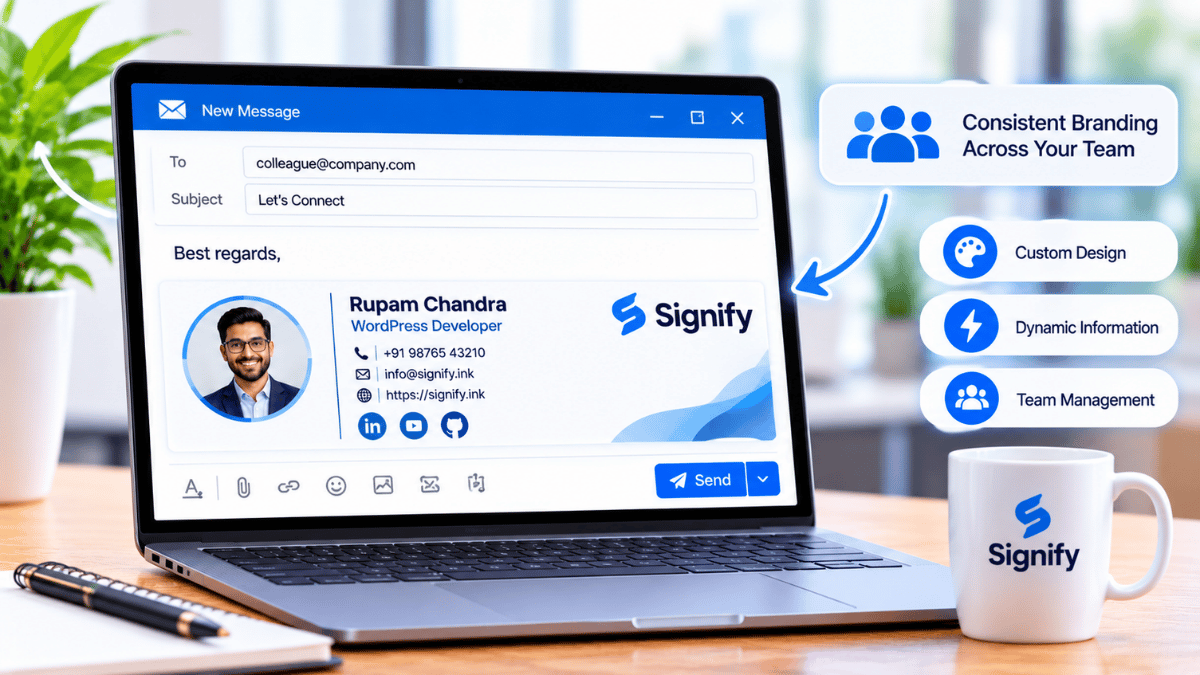
A Signify email signature includes the same links as your card — LinkedIn included. Every email you send becomes another opportunity for the recipient to click through to your profile. For professionals whose outreach happens primarily by email, this is often the highest-frequency touchpoint in the entire workflow.
Virtual backgrounds
A Signify virtual background with a QR code lets anyone on a video call scan directly to your card, and from there to LinkedIn. This is especially useful for remote networking calls, webinars, and online events where no physical exchange happens. The Signify solutions page covers how virtual backgrounds fit into the broader workflow.
Company pages and business briefs
Organizations that maintain a public-facing page can use Business Brief to route visitors to individual employees’ cards, and from there to their LinkedIn profiles. This makes the entire company more reachable through the same channel structure.
For teams and enterprises
Deploying Signify and LinkedIn together as an organizational workflow is straightforward with Signify Teams. The team layer adds what individual cards cannot.
Consistent template across every employee
Organization card templates lock the branding, logo, and required fields while letting each employee add their own LinkedIn URL and contact details. Every card looks like it belongs to the same organization — which matters when multiple team members meet the same prospect at the same event.
Shared contacts and pipeline
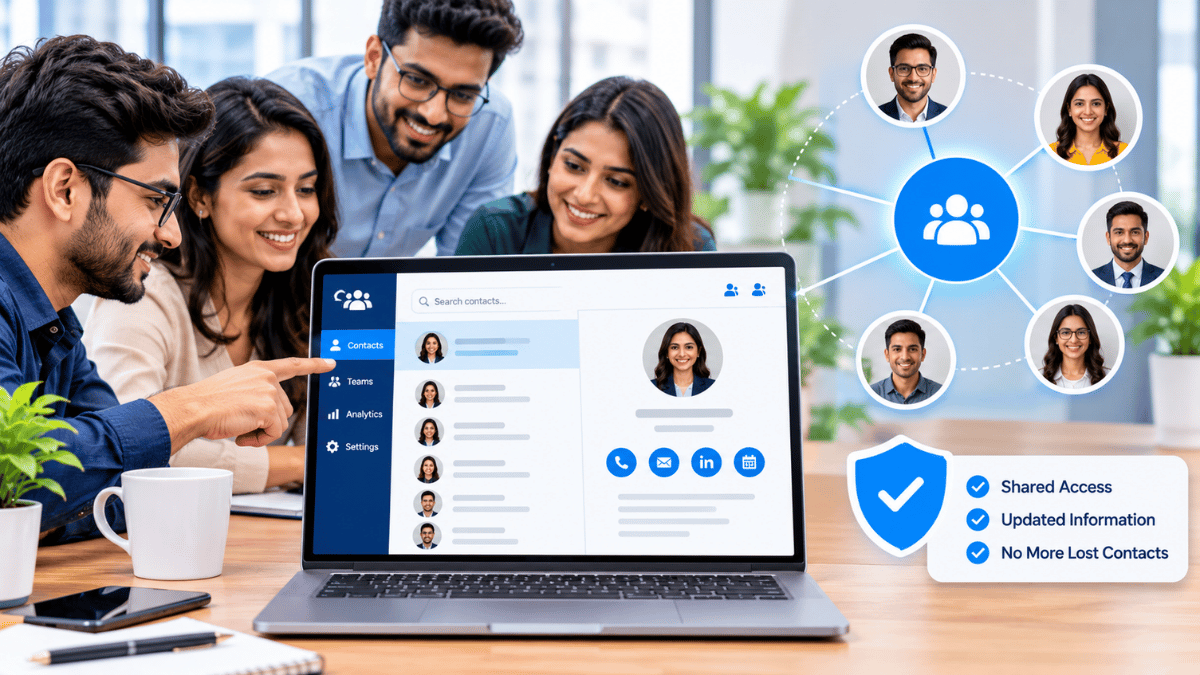
Contacts captured by any team member appear in a shared directory, with the ability to see who has already been introduced to whom. For sales teams where multiple reps may meet the same prospect at different events, this prevents duplicate outreach and preserves context. Contacts can sync to Zoho CRM automatically.
Team analytics
Card views, saves, and LinkedIn click-throughs can be aggregated by team, by event, or by rep. This is the first time most organizations can answer “which events produced the most follow-through?” with data rather than anecdote.
The Security Policy and Privacy Policy cover the data-handling posture that enterprise buyers will want to review before rollout. The pricing page has per-seat details.
Frequently asked questions
Is Signify integrated with LinkedIn?
No — Signify and LinkedIn are not connected via API. What exists is a workflow: you add your LinkedIn URL as a link on your Signify card, and recipients can tap through in one step. There is no automatic data sync, no shared login, and no technical integration. The value is in the sequence, not in a direct connection between the platforms.
How does Signify help with LinkedIn networking?
Signify is the fastest way to get a new contact into LinkedIn. When you share a Signify card by QR, NFC, or link, the recipient saves your contact immediately — and your LinkedIn URL is one of the links on the card. They can tap it and send a connection request within minutes, while the meeting is still fresh. This is what makes the warm-intro effect work at scale.
Should I put my LinkedIn link first or last on my Signify card?
Put it near the top — right after your primary contact method (typically phone or email). LinkedIn is the second-most clicked link on most professional Signify cards, and cards with LinkedIn at the bottom lose significant click-through. Most users also place a calendar booking link alongside, giving the recipient two clear next steps (connect on LinkedIn, or book time).
Does the LinkedIn click show up in Signify analytics?
Yes. Signify analytics track every link click, including the LinkedIn click. You can see how many card views converted to LinkedIn clicks, which is a useful signal for whether your LinkedIn profile is interesting enough to visit. If the click-through rate is low, the LinkedIn profile or the way it’s described on the Signify card may need improvement.
Should the Signify bio and LinkedIn headline match?
They should be complementary rather than identical. Your LinkedIn headline is longer and more professional (e.g. “Helping B2B SaaS companies scale through data-driven marketing”); your Signify bio is shorter and more direct (e.g. “B2B marketing for SaaS founders”). The two should be consistent in what they claim, but different in format — the Signify bio is designed to make the recipient want to click through to see more.
What is a LinkedIn All-Star profile?
All-Star is LinkedIn’s own designation for a complete profile — it requires a photo, headline, summary, at least one current position, education, skills, and some additional fields. LinkedIn’s published marketing claims that All-Star profiles get substantially more views and opportunities than incomplete ones, though the exact multipliers LinkedIn cites should be treated as directional rather than precise. The practical point: a complete profile is worth the effort, and Signify cards are most effective when the LinkedIn destination is worth arriving at.
Can I see which of my Signify card views led to LinkedIn connections?
Signify tracks LinkedIn link clicks, but LinkedIn does not report back to Signify which clicks turned into accepted connection requests — there is no API integration. To measure connection-request conversion, you would compare Signify’s LinkedIn-click count against LinkedIn’s weekly connection-request count. Most professionals find a strong correlation once the workflow is running.
Does Signify work with LinkedIn QR codes (the QR code inside the LinkedIn app)?
Yes, in the sense that a recipient can scan either code. LinkedIn’s QR code opens the LinkedIn profile; a Signify QR code opens your Signify card, from which the recipient can tap through to LinkedIn. Which one you show depends on what you want the recipient to see first — LinkedIn directly, or your Signify card (which carries more information, including the LinkedIn link).
Can my organization roll out Signify and LinkedIn workflows together?
Yes. Signify Teams provides branded templates, shared contacts, and team analytics across the organization. LinkedIn is not managed by Signify (each employee maintains their own profile), but the team layer ensures that every employee’s Signify card presents the LinkedIn link consistently, and team analytics show how the workflow is performing.
What is the first step to try this workflow?
Create a free Signify card, add your LinkedIn URL as one of the links, and test the click-through on a phone that isn’t yours. Then send yourself an email with the card link to see how the email signature version works. The whole setup takes ten minutes and the free tier is enough to evaluate the workflow.
Capture the moment, then build the relationship
Use Signify to save the introduction and LinkedIn to grow the connection. Together, they cover the entire networking lifecycle.
Create your free Signify card