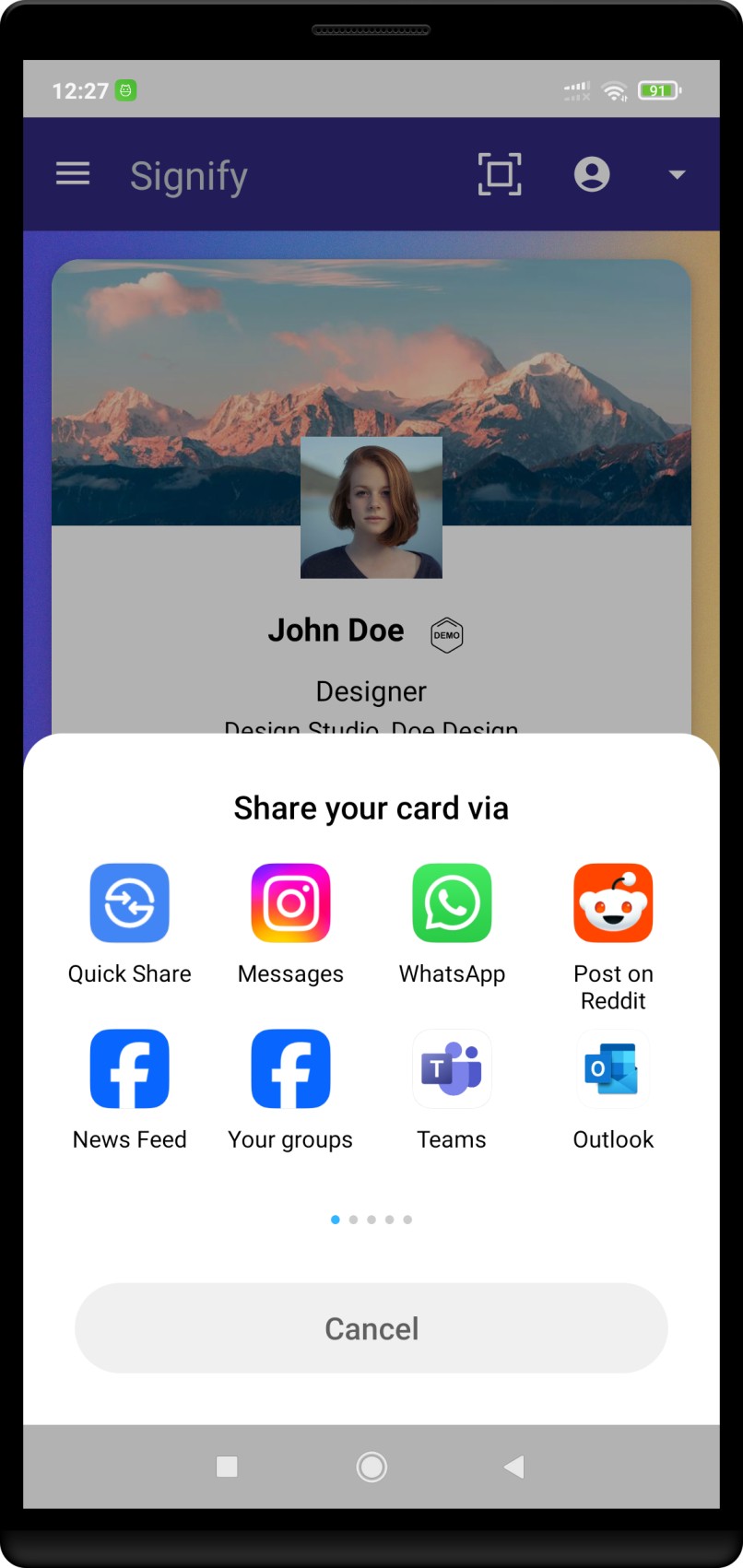
 Signify Mobile

A digital business card is only as useful as the moment you actually share it. The card itself can carry a portfolio, a booking link, and a current role — but if the sharing step is awkward, slow, or requires the other person to install something, none of that matters. The good news is that a Signify card can be shared through several distinct channels, and each one fits a different moment. The useful question is not “which method is best” but “which method fits the room you are in”.
This guide covers every verified sharing method for a Signify digital business card: the QR code, the NFC tap, the direct link, the email with VCF, the email signature, the website widget, presentation slides, print materials, and team deployment. For each, it names the moment it fits and the moment it does not. If you have not created a card yet, the Create a Card flow is where to start.
- There are six core sharing methods — QR, NFC, link, email with VCF, email signature, and website widget — plus three bridge methods (slides, print, team rollout).
- Recipients never need the Signify app. Every method opens a browser profile.
- Roughly 88% of paper cards are thrown away within a week, cited by the American Bar Association — the sharing method is what changes that number.
- Use NFC for the handshake, QR for the banner, and link for the follow-up. The three complement each other rather than compete.
Sharing by QR code
The QR code is the most flexible sharing method a Signify card has, because it works on any phone with a camera and requires nothing from the recipient. A QR code is a matrix that encodes a URL, and the international standard ISO/IEC 18004:2024 defines the encoding and error-correction that makes any modern phone camera able to read one without a special app.
Where the QR code lives
A Signify card has a QR code generated from the account. The smart QR code page covers how the code resolves to the live profile. You can save the code to your phone’s photos, add it to a lock screen, print it on a card, or paste it into a slide. Because it points to the live profile rather than a static URL, updating the card behind it updates what the code resolves to.
When to use it
QR is the right method when you cannot be sure what device the other person is using, or when you are sharing with many people at once. A banner at a trade show, a slide at the end of a pitch, a printed card at a conference — all of these are QR-first moments. It is also the safest fallback when NFC is not available on the recipient’s phone.
When not to use it
QR is slower than NFC in a one-to-one conversation because the recipient has to open a camera. It also requires the code to be reasonably large on the page or surface, which makes it a poor fit for the corner of a business card unless the card is designed around it. For a direct handshake, an NFC tap is faster.
Sharing by NFC tap
Near-field communication (NFC) is a passive chip embedded in a card or accessory. It is powered by the recipient’s phone when they hold it close — usually within a few centimetres — and the chip transmits a URL. The NFC business cards page covers the physical card options.
When it is the fastest option
In a one-to-one conversation, the tap is the fastest sharing method a card has. The recipient does not have to open a camera, find the code, or focus. They hold their phone near the card, and the profile opens. This is the method that best fits a handshake — the moment after the introduction, before the conversation moves on.
What it requires
NFC requires the recipient’s phone to support it. Most modern smartphones do, but not all — and some cases and screen protectors interfere with the chip. If the recipient’s phone does not support NFC, or the tap does not register, the QR code or a link is the fallback. Neither requires the recipient to install anything, so the fallback is always available.
When not to use it
NFC is useless over email, in a chat window, or on a slide. It is a physical-proximity method only, which is why every professional who uses NFC as their primary mode also keeps a QR code and a link ready for the moments when the tap is not possible.
Sharing by direct link
Every Signify card has a URL. The link is the most portable sharing method because it works in any text-based channel: email, WhatsApp, Slack, Teams, SMS, LinkedIn messages, and calendar invites. The recipient clicks it, the profile opens in their browser, and they can save the contact without downloading anything.
Chat and messaging
Paste the link in a WhatsApp, Slack, or Teams conversation. The recipient clicks it and the profile opens. The send-a-card flow is the version that attaches a VCF so the contact saves in one tap.
Calendar invites
Add the card link to the meeting description. The recipient sees it when they accept the invite, and it is still there when the meeting is over and they want to follow up.
Social profiles
Add the link to a LinkedIn bio, a Twitter/X profile, or an Instagram bio. It works as a “one link” that carries the current role and portfolio — the alternative to a link aggregator covered in the online business card page.
SMS and voice follow-up
After a phone call, a text with the card link is faster than asking the other person to type an email address. It works on any phone without an app.
The link is the method that makes a digital card useful after the conversation, not just during it. A paper card handed over at a meeting has no equivalent: once it is in a drawer, there is no way to send it again. A link can be re-shared anytime, and it always resolves to the current version of the profile.
Sharing by email with VCF
The send-a-card feature is the email-specific version of link sharing, and it is the one that removes the most friction for the recipient. Instead of a link the recipient has to open in a browser and then save separately, the email carries a VCF attachment that iOS and Android open natively as a contact.
This matters more than it sounds. A follow-up email with a link to a card is a two-step action for the recipient — click the link, then save the contact on the resulting page. A follow-up email with a VCF is a one-step action — tap the attachment, confirm, and the contact is in the address book. For a busy recipient, one step is meaningfully more likely to actually happen than two.
Email signature as a passive share
The email signature feature is not a sharing moment in the same way the others are — it is a background surface that shares the card in every email you send. For a professional sending dozens of emails a day, that is a much larger total reach than any single handshake.
A signature works best when it is minimal: one line with the card link, not a full block of contact details. The link is the point — the profile carries the details. For teams, the signature feature can be deployed organisation-wide so every outgoing message carries a consistent card, which is the version that keeps a brand coherent across dozens of individual inboxes.
Website widget
The Signify widget embeds your card — or a carousel of team members’ cards — on a web page. It is the sharing method for people who find you through search or through a website, rather than through a conversation. A contact page, a team page, a speaker bio, or a careers page can all carry the widget, and the recipient does not have to remember a URL to get back to it.
The widget is also the right method for a team whose individual members each want to be findable. Rather than linking to fifty separate cards, a single carousel lets a visitor browse the team and find the person they actually need. The Signify Teams page covers the team-deployment version of this.
Bridge methods: slides, print, team
Three further methods sit between the card and the sharing moment. They are not new ways to open the card — they are new places to put the QR code or link so the card is available without anyone having to ask for it.
Presentation slides
A QR code on the final slide of a pitch or a talk turns viewers into contacts without a call-to-action. The audience scans while the slide is up, and the profile opens in their phone. For a conference speaker, this is the highest-leverage slide in the deck.
Print materials
A QR code printed on a product box, a flyer, or a menu bridges offline to online without requiring a paper business card. This is the one legitimate use of a printed surface for a digital card — the QR code points to the live profile, so nothing goes stale.
Team deployment
For a team attending a conference, Signify Teams centralises the cards and shared templates, so every team member’s card looks consistent and every card is discoverable from one shared QR code or widget. The pricing page covers the seat tiers.
Which method for which moment
The methods above overlap. The table below maps them to the moments they actually fit, so the decision is easier than the list suggests.
| Moment | Best method | Fallback |
|---|---|---|
| In-person handshake | NFC tap | QR code |
| Trade show banner or booth | QR code on the banner | Widget on a landing page |
| Presentation or pitch | QR code on the final slide | Link in a chat during the Q&A |
| Email follow-up | VCF attachment | Direct link in the body |
| Chat or messaging | Direct link | — |
| Every outgoing email | Email signature | — |
| Website visitor who found you | Widget on a contact page | Link in the page copy |
The pattern is that NFC and QR cover the physical moments, the link covers the digital moments, and the VCF covers the follow-up. A professional who has all three ready never has to fumble for the right method. That is the actual answer to “how do I share it in seconds” — not one method, but the right method for the moment.
Sources: American Bar Association and UPrinting (88%); ISO/IEC 18004:2024 (QR code standard); Signify product pages (sharing methods).
What to test before you rely on it
Sharing methods fail at the exact moment you need them if they have not been tested. The six checks below take ten minutes and cover the failure modes that matter.
-
Scan your own QR code with a phone that is not yours. This is the single most important check. A code that renders perfectly on your screen but does not scan from a phone at arm’s length will fail at the exact moment it matters.
-
Tap your own NFC card with a phone that is not yours. Confirm that the tap opens your profile rather than a sticker on the card or an old version of the URL. If the NFC does not register, use the QR code as the primary method.
-
Open your own card link on a mobile browser. The card is designed for phones first. If it renders badly on a phone, the whole point of the digital card is undermined.
-
Send yourself a send-a-card email and open the VCF attachment. Confirm that your phone opens it as a contact rather than as a file preview. This is the step that saves the follow-up.
-
Check your email signature on a real outgoing email. Open the sent message on a phone, not just in a preview. Signature blocks often break on mobile clients even when they look fine on desktop.
-
Preview the widget on mobile. If you are embedding on a team page or a landing page, open the page on a phone. The widget is designed for mobile but the surrounding page is not always.
Frequently asked questions
What is the fastest way to share a Signify card?
In person, an NFC tap is the fastest — the recipient holds their phone near the card and the profile opens. Over email or chat, a direct link is the fastest. For a crowd, a QR code on a banner or slide is the fastest because it works for everyone at once without requiring them to install anything.
Do recipients need the Signify app to open the card?
No. Every sharing method opens the card in a browser, and the recipient can save the contact as a VCF without downloading anything. The send-a-card flow attaches the VCF directly to the email so the contact can be saved in one tap.
Why is the QR code standardised, and does it matter?
QR codes follow ISO/IEC 18004:2024, which defines the encoding and error correction that make any modern phone camera able to read one without an app. That is why the Signify QR code works with a phone’s native camera — the standardisation is what makes it universal.
Can I share the card in a Zoom or Google Meet chat?
Yes. Paste the card link into the meeting chat during the call. The recipient clicks it and the profile opens. This is often faster than the “I’ll email you later” step, and it means the contact is captured before the meeting ends rather than relying on a follow-up that may not happen.
Is a print QR code worthwhile, or does it defeat the point of going paperless?
A printed QR code on a product box, a flyer, or a menu is a legitimate bridge between offline and online — the code points to a live profile, so nothing goes stale. What it replaces is the paper business card, not all print. A card that carries your QR code is a static object with a live destination behind it, which is the useful version of print in a digital-first workflow.
How do I share my card with a whole team at once?
Signify Teams centralises the cards and shared templates so every team member’s card looks consistent. You can also use the widget to display the whole team in one carousel, so a visitor browses the team rather than clicking fifty separate links.
What should I do if the NFC tap does not register?
Fall back to the QR code or a link. The NFC chip can fail to register for several reasons — a phone case, a screen protector, or an older phone that does not support NFC. Because the card is behind a URL, every fallback opens the same profile, so the recipient gets the same card regardless.
How do I get started?
Open Create a Card in Signify, add your professional details and links, then share by QR code, NFC tap, or link. Add the card to your email signature so every outgoing message carries it, and consider the widget if you have a website.
The right method for the right moment
QR for the crowd, NFC for the handshake, link for the follow-up — and every method opens the same live profile.
Create your Signify card